Managing Rental Agreements and Privacy Policies in Limo Anywhere
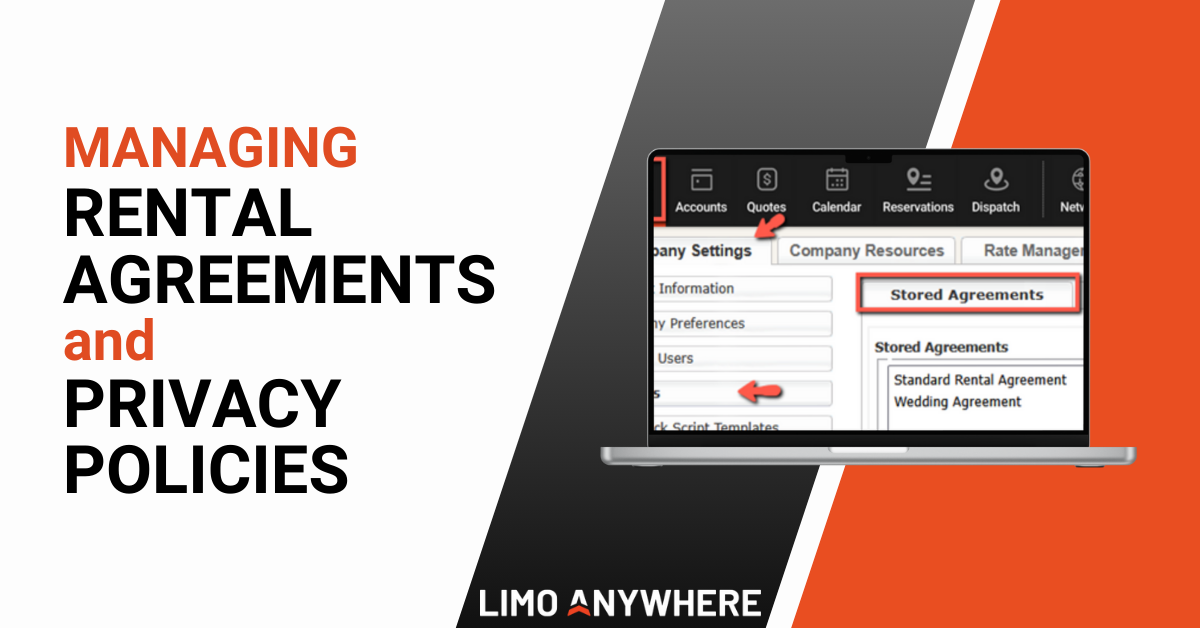
The day-to-day operation of your business relies on clear terms, consistent processes, and reliable documentation. Company policies support those routines by outlining what clients can expect and what your team should communicate during bookings and billing. Within Limo Anywhere, configuring your Rental Agreements and Privacy Policy ensures that these expectations are documented and utilized consistently when making reservations.
Accessing Your Company Policies
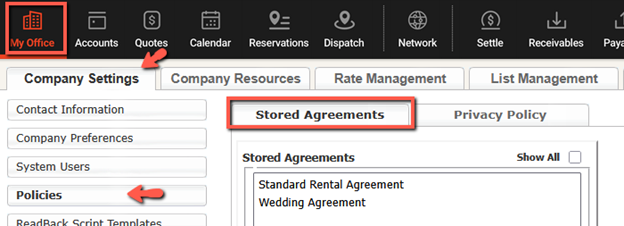
- Click the “My Office” icon.
- Navigate to “Company Settings” then select “Policies” from the left-hand menu.
- Toggle between the “Stored Agreements” and “Privacy Policy” tabs depending on what you need to update.
Configuring Rental Agreements
Rental Agreements outline the terms that apply to your services. Every event, service type, or vehicle may have unique conditions attached to it, and Limo Anywhere lets you specify those details. Some operators prefer a single standard agreement. Others maintain separate versions for airport services, weddings, proms, or multi-vehicle events.
To create or edit a rental agreement:
- Select the “Stored Agreements” tab.
- Click the “Add New Agreement” button.
- Enter a descriptive name in the “Rental Name” field.
- Confirm the status dropdown is set to “ACTIVE” so it is usable in reservations.
- Paste your agreement details into the text editor.
- [Optional] Select the appropriate tick box if you want to set the agreement as your default agreement and/or your default farm-out agreement.
- Click “SAVE” to apply the changes to your system.
You can customize agreements with deposit rules, cancellation terms, liability language, damage fees, and overtime conditions. Establishing these terms prevents misunderstandings and supports your team when issues arise.
Using Company Policies with Contract and Card Capture in LQC
If you use LQC alongside Contract and Card Capture, your policies support communication earlier in the booking process. During quotes, clients can review your agreement before they sign, and you can collect authorization before the trip reaches dispatch. This reduces payment disputes and ensures that clients acknowledge expectations up front.
To configure policies with Contract and Card Capture:
- Click the “Addons” icon in the Navigation Bar.
- Select the “Contract & Card Capture” module.
- Click the “Add New Configuration” button (or select the gear icon if you want to edit an existing configuration).
- Complete the “Name” field and enter the agreement details in the “Terms of Service” field.
- Configure the remaining settings.
- Click the “Save New Configuration for Confirmation & Card Capture” (or Update if making changes to an existing configuration).
When paired with LQC, the selected policy will display before the client signs. Card Capture will then collect and store authorization so you can secure deposits or cancellation fees when needed.
This ensures your agreements are accessible and enforceable. Clients understand financial expectations before they commit, and your team has documentation to reference later without searching through emails or external files.
Assign Default Agreements by Service Type
Assigning default agreements to service types applies the correct policy automatically when a reservation is created.
- Click the “My Office” icon.
- Navigate to the “Company Settings” tab and select “System Settings” in the left-hand menu.
- Click the hyperlink for the Service Type you want to edit.
- Choose the appropriate policy in the “Agreement” drop-down.
- Click the “Save” button.
Configuring Your Privacy Policy
Your Privacy Policy defines how client and reservation data is collected, stored, and referenced within your operation. This is relevant any time you accept online bookings, store payment information, or retain client profiles for repeat service. Many corporate accounts and partner networks require a documented policy to verify that you are managing data responsibly and in alignment with common standards. A clear Privacy Policy helps ensure that your procedures for retaining, accessing, and protecting client information are stated and consistent across your system.
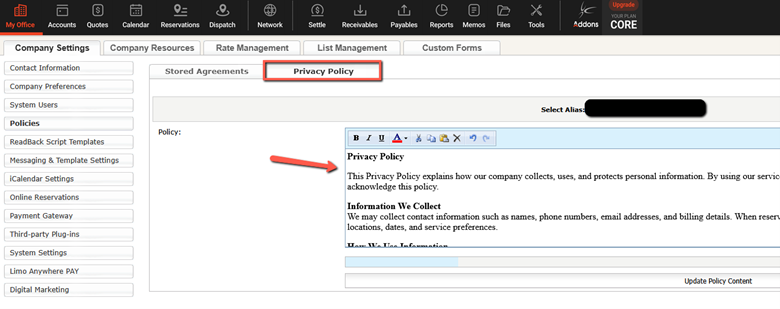
- Select the “Privacy Policy” tab.
- Enter your privacy policy into the text editor.
- Click “Update Policy Content” to save changes.
NOTE: The Privacy Policy is limited to 20,000 characters.
You should enter a Privacy Policy that reflects your business practices. If you do not already have one, there are reputable templates and educational resources online to help you understand what is typically included, or you may choose to consult a legal professional. The default placeholder text in Limo Anywhere includes language directing clients to the email listed in your General Email field, and you can replace that wording with language that aligns with your policy and preferred contact method.
Company policies are an essential part of your reservation workflow. Keeping your Rental Agreements current, maintaining a clear Privacy Policy, and updating language across Contract and Card Capture settings ensures consistency throughout your system. When expectations are documented and accessible, both your clients and your team benefit.
Recent Posts

SEO & AI Search Marketing Webinar
Monday September 14, 2026
2026 CD/NLA Show
Wednesday September 2, 2026