Configuring Standard Email Settings in Limo Anywhere
Standard email settings control how trip confirmations, invoices, payment receipts, and system notifications are sent in Limo Anywhere. They determine what’s included and who receives each message by default.
Reviewing and configuring these settings helps keep emails consistent and aligned with your day-to-day workflow.
Accessing Your Standard Email Settings
- Click the “My Office” icon.
- Navigate to the “Company Settings” tab.
- Open “Messaging & Template Settings” from the left-hand menu.
- Select the “Standard Settings” tab. Once there, you’ll see additional menu items including General, Email Header Templates, Invoices, Notifications, Document Mapping, and SMS Templates.
NOTE: These settings apply globally and affect all system-generated emails unless overridden at the time an email is sent.
General
The General section controls the default behavior of system-generated emails, including confirmations and payment receipts. Everything in this section applies unless overridden at the time an email is sent.
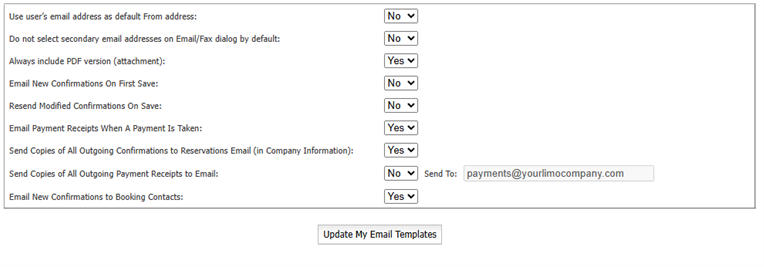
- Use user’s email address as default From address
This setting determines what email address appears in the From field on outgoing emails.
- No: Emails are sent from the company email address.
- Yes: Emails are sent from the individual user’s email address.
Choose this based on whether replies should go to a shared inbox or directly back to the user who created or sent the reservation.
- Do not select secondary email addresses on Email/Fax dialog by default
This setting controls whether secondary email addresses are automatically selected when sending emails.
- No: All email addresses on the contact record may be selected by default.
- Yes: Only the primary email address is selected unless additional addresses are manually chosen.
Setting this to Yes helps prevent duplicate emails and reduces confusion about which address a client will reply from.
- Always include PDF version (attachment)
This controls whether a PDF version of the document is automatically attached to outgoing emails.
- Yes: PDFs, such as confirmations or invoices, are attached by default.
- No: Emails are sent without attachments unless added manually.
Attachments can still be removed before sending an individual email if needed.
- Email New Confirmations On First Save
This setting determines whether a confirmation email is automatically sent when a reservation is saved for the first time.
- Yes: A confirmation is sent immediately upon initial save.
- No: Confirmations must be sent manually.
- Resend Modified Confirmations On Save
This controls whether confirmation emails are automatically resent when a reservation is modified and saved.
- Yes: Updated confirmations are sent automatically.
- No: Updates must be sent manually.
This is useful if reservations are frequently edited and clients need visibility into changes.
- Email Payment Receipts When A Payment Is Taken
This setting determines whether a receipt is automatically emailed when a payment is captured.
- Yes: Clients receive a receipt immediately after payment.
- No: Receipts must be sent manually.
Enabling this often reduces follow-up questions about payment status.
- Send Copies of All Outgoing Confirmations to Reservations Email
This controls whether confirmation emails are automatically copied to the reservations email address listed in Company Information.
- Yes: Internal copies are sent automatically.
- No: No internal copies are sent.
This is helpful for internal visibility and recordkeeping.
- Send Copies of All Outgoing Payment Receipts to Email
This controls whether payment receipts are copied to a specific internal email address.
- Yes: Copies are sent to the address entered in the Send To field.
- No: Receipts are only sent to the client.
This is commonly used by accounting or finance teams.
- Email New Confirmations to Booking Contacts
This setting determines whether booking contacts receive confirmation emails in addition to the primary client.
- Yes: Booking contacts receive confirmations.
- No: Only the primary client receives confirmations.
This is especially useful for corporate or assistant-booked reservations.
NOTE: Changes made in the General section apply only to future emails. Messages already sent are not affected.
Email Header Templates
Email Header Templates allow you to define standard text that appears at the top of specific system emails. These headers help ensure important information or disclaimers are consistently included.
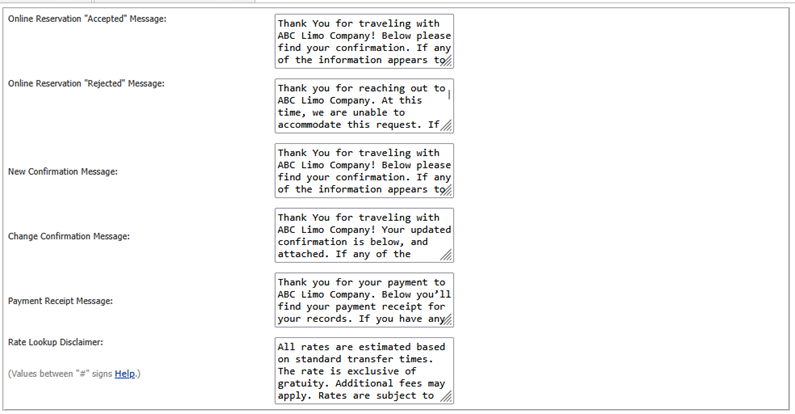
Header templates can be configured for scenarios such as:
- Online reservation accepted messages
- Online reservation rejected messages
- New reservation confirmations
- Modified reservation confirmations
- Payment receipt emails
- Rate lookup disclaimers
By configuring these headers once, you reduce the need for manual edits and ensure messaging remains consistent across users.
Invoices
Invoice-specific settings allow you to control how invoices are delivered by email. You can enable or disable automatic invoice emails and define the header text included with those messages.
This is useful if your invoicing process involves review or approval steps before invoices are sent to clients.

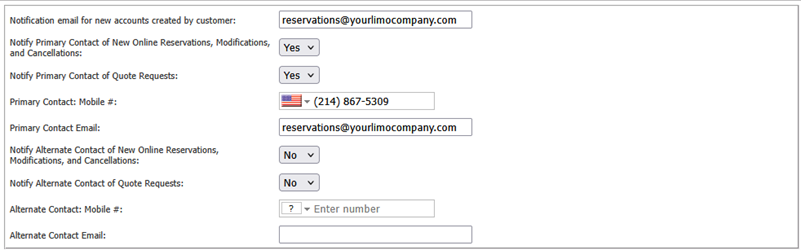
Notifications
The Notifications section allows you to configure internal alerts when certain actions occur, such as online reservations being created or modified.
Notifications can be sent via email and, in some cases, converted to SMS messages when a mobile number is provided. This helps keep teams informed in real time without needing to monitor the system constantly.
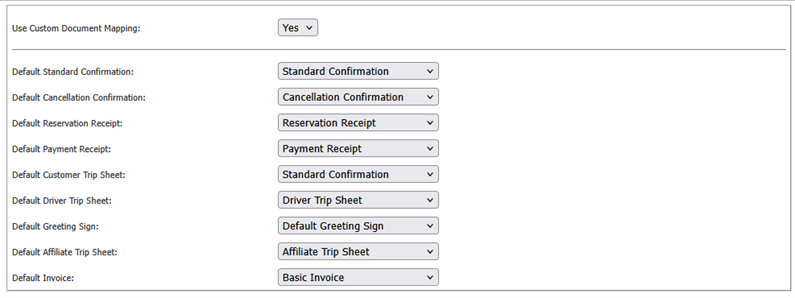
Document Mapping
Document Mapping determines which forms are used when generating confirmations, invoices, and other documents. You can choose between default system forms or custom forms you’ve created.
This ensures the correct documents are attached and sent automatically based on the situation, without manual selection each time.
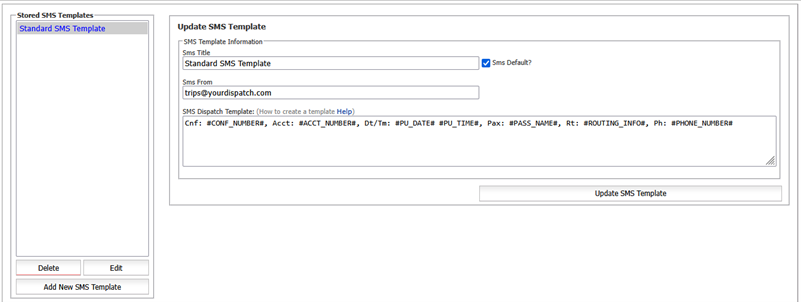
SMS Templates
If your operation uses SMS notifications, the SMS Templates section allows you to control the content of text messages sent for specific events.
Because SMS messages are brief by nature, these templates work best when paired with clear email communication, reinforcing key details without overwhelming the recipient.
These settings don’t need constant attention, but they are worth revisiting from time to time. A quick review helps confirm that email behavior still matches how your team communicates and how reservations are handled today.
Recent Posts

SEO & AI Search Marketing Webinar
Monday September 14, 2026
2026 CD/NLA Show
Wednesday September 2, 2026