Using Quote Response Templates in Limo Anywhere
Quote Response Templates in Limo Anywhere are designed to streamline one of the most repetitive parts of the quoting process. They help standardize messaging, reduce manual entry, and limit the risk of missed or inconsistent details across users.
By pulling key information directly into a structured response, templates make it easier for teams to respond accurately and efficiently, even during high-volume periods.
Accessing Quote Response Templates
Templates created here are used when emailing quotes to clients and can be selected at the time a quote response is sent.
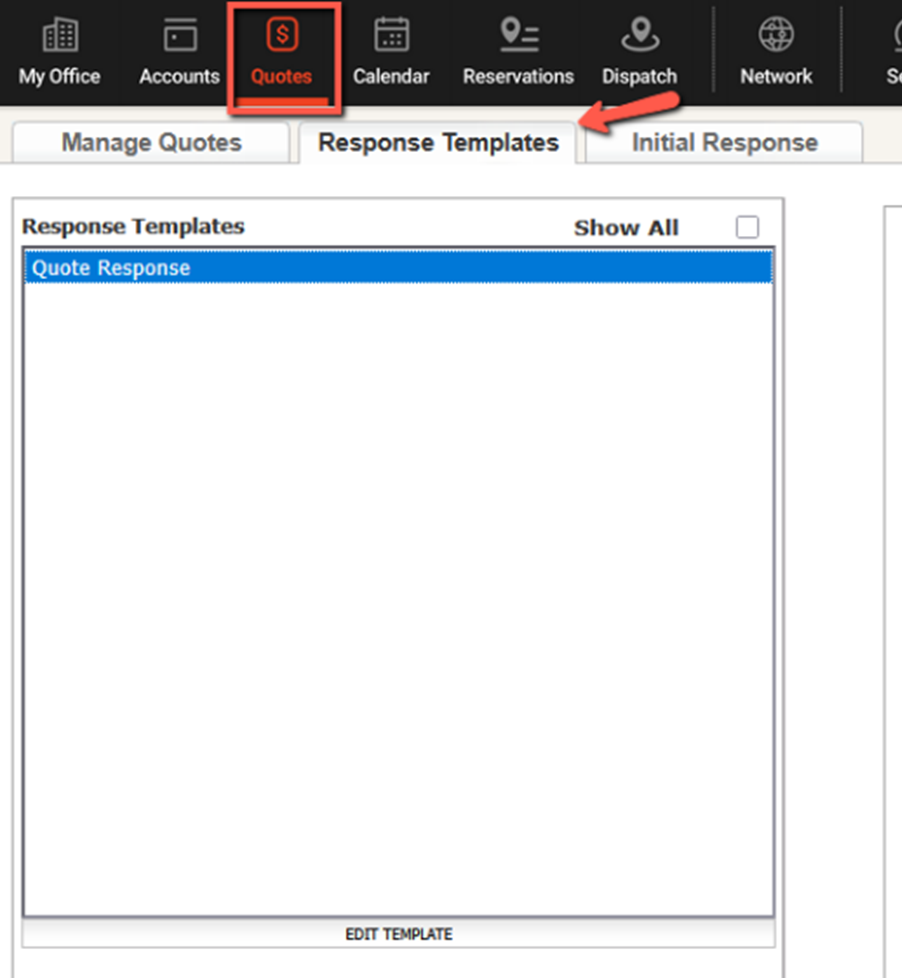
- Click the “Quotes” icon.
- Navigate to the “Response Templates” tab.
What To Include in Your Quote Response Templates
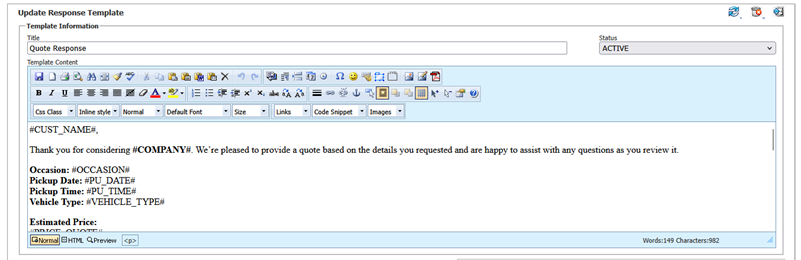
Quote Response Templates define the default subject line and message content used when replying to a quote. They support dynamic fields that automatically populate information already stored in the quote, such as:
- Client name
- Requested date and time
- Vehicle type
- Pricing details
- Routing and service information (via the quote summary)
- Company contact information
- A link for the client to proceed with booking
Because these details are pulled directly from the quote, your team can focus on reviewing accuracy and answering client questions instead of rewriting the same response for each request.
Best Practices for Quote Response Templates
When setting up quote response templates, the goal is to make responses faster and more consistent without locking your team into overly rigid language.
Some things to include in your response template:
- Clear next steps for the client
- Dynamic fields wherever possible
- Space for brief personalization when needed
- A tone that matches your other client communications
You can create multiple templates for different service types or rely on a single adaptable template, depending on how your team handles quoting.
Responding to Quotes
Once a quote is ready, response templates help ensure the information sent to the client matches what’s been entered and reviewed internally.
- Click the “Quotes” icon.
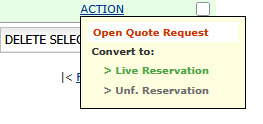
- Locate the quote you want to respond to and click the “ACTION” link.
- Select “Open Quote Request” from the drop-down menu
- Click the “Email Quote” button to begin sending the quote to the client.
- Select your desired template from the drop-down menu and click the “LOAD >>” button.
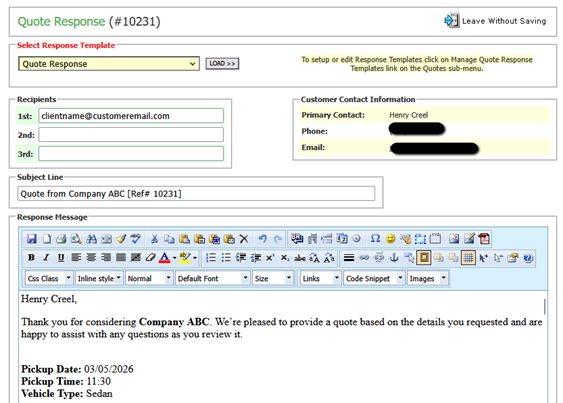
- Review the information populated in the response to confirm all details are correct.
- You can make edits directly to the response message if adjustments are needed.
- Click “SEND AND LOG RESPONSE” at the bottom of the window when finished to send the email.
- The response is sent to the client and logged in the Response/Change Log for reference.

If you experience issues with quote or email delivery, make sure your domain is properly authenticated. Domain authentication plays a key role in ensuring messages are delivered reliably.
If you need assistance, you can also reach out to Limo Anywhere Support at support@limoanywhere.com or by calling 972-701-8887 Ext. 2.
Recent Posts
Customizing Your Lead Form
Monday August 17, 2026
Making ORES Work for Your Clients and Your Team
Friday August 14, 2026