Using Receivables to Create an Invoice in Limo Anywhere
The Receivables section in Limo Anywhere allows you to create and manage invoices by grouping multiple reservations under a single billing structure. You may have clients request to be invoiced for event-related bookings, such as conferences and large weddings, or you may use invoices for affiliate work and ongoing corporate clients with a running monthly balance. In this blog, we’ll cover how to identify invoiceable trips, create and modify invoices, and finalize them once they’re ready to be sent.
NOTE: Before a reservation can be included on an invoice:
- The Billing Contact must have an account in your system
- The Payment Method must be set to “Direct Bill-Invoice” under the “Payment Info” tab
If you haven’t already configured your payment methods, you can review setup instructions by visiting the following link.
You can set the default Payment Method to “Direct Bill-Invoice” under the “Financial Data” tab within the account. This ensures all future reservations for that client are automatically marked for invoicing. Updating the default payment method will not impact existing reservations, so be mindful when copying previous trips, as the original payment method will carry over.
Accessing Invoiceable Trips
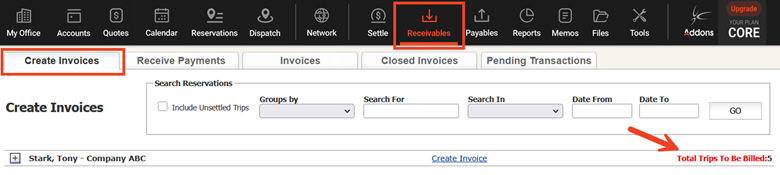
- Click the “Receivables” icon in the navigation bar
- The “Create Invoices” tab will open by default
This view displays all settled trips with the “Direct Bill-Invoice” payment method, grouped by Billing Contact.
Creating an Invoice
There are two methods available when creating an invoice in Limo Anywhere.
Option 1: Using the “Create Invoice” Link
- Click the blue “Create Invoice” link

- The system will open a draft invoice with all eligible trips for that Billing Contact
From here:
- (Optional) Set the Invoice #
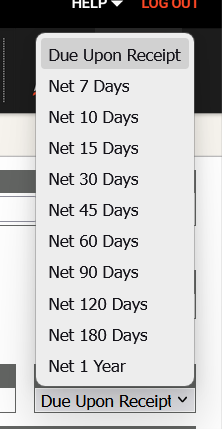
NOTE: Invoice numbers are auto-generated after the first invoice - Select the appropriate payment terms from the list
- Enter a PO # if applicable
- Select the trips to include using the checkboxes
- (Optional) Add a Customer Message (visible to the client)
- (Optional) Add Invoice Notes (internal only)
- (Optional) Apply a Discount or Extra Charge
- Click “Save Changes”
NOTE: The invoice is not created until you click “Save Changes.”
Option 2: Adding Selected Trips
- Click the [+] next to the Billing Contact to expand available trips
- Select the trips you want to include
- Click “Add Selected Trips to Invoice”

At this point, the invoice is created. You can then update:
- Invoice #
- Payment terms
- Customer Message
- Internal notes
- Discounts or additional charges
Click “Save Changes” once updates are complete.
Modifying an Invoice
- Click the “Receivables” icon
- Select the “Invoices” tab
- Open the invoice by clicking the Invoice #
- Make the necessary updates and click “Save Changes”
NOTE: Only unfinalized invoices can be modified.
Finalizing an Invoice
Invoices can be sent before they are finalized, but they remain editable until finalization. This means reservations can still be added or removed.
If you are tracking a running balance for a client, sending an unfinalized invoice can provide visibility into current charges. When you are ready to confirm totals, finalizing the invoice ensures all trips are billed accurately.
To finalize an invoice:
- Open the invoice and click “Finalize”, or
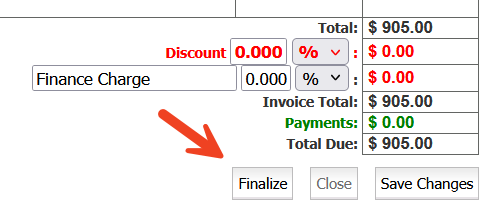
- Use the batch finalize option from the Invoices screen

Have feedback or suggestions about invoice functionality in Limo Anywhere? We’d love to hear from you. Share your ideas with our Product Team at ProductTeam@LimoAnywhere.com.
If you have any questions or need assistance, call our Support Team at 972-701-8887 x2 or email us at Support@LimoAnywhere.com.
Recent Posts
Customizing Your Lead Form
Monday August 17, 2026
Making ORES Work for Your Clients and Your Team
Friday August 14, 2026