Configuring Flight Offsets and Flight Information in Dispatch

In Part 2 of this series, we reviewed how to enter and verify flight information in Limo Anywhere. Once a flight is associated with the correct routing segment, operators can configure how updated arrival information affects the reservation and what their dispatchers see in their dispatch grid.
Enabling Automatic Pickup-Time Adjustments
Operators can choose whether Limo Anywhere should automatically adjust a reservation’s pickup time when the estimated arrival time of the associated flight changes.
To enable this setting:
- Navigate to “My Office”
- Select the “Company Settings” tab
- Open “Company Preferences” and click “Reservations”
- Locate the “Update Pick Up time based on the Arrival flight’s ETA and flight offset” setting
- Set the drop-down to “Yes”
- Save the updated company preferences.
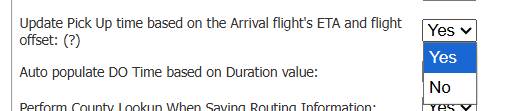
When enabled, Limo Anywhere monitors the estimated arrival time of the flight associated with the pickup routing. If the estimated arrival changes, the reservation’s pickup time can update while preserving the selected offset.
Because the underlying flight information is supplied through FlightStats, the adjusted pickup time will reflect the latest estimated arrival information available to Limo Anywhere.
How Automatic Pickup-Time Adjustments Work
The adjusted pickup time is calculated using:
- The flight’s current estimated arrival time
- The flight offset selected on the reservation
For example, a flight may originally be scheduled to arrive at 12:30 PM. If the reservation is configured for the chauffeur to arrive 15 minutes after gate arrival, the pickup time will initially be set for 12:45 PM.
If the estimated arrival changes to 12:50 PM, Limo Anywhere will preserve the 15-minute offset and update the reservation pickup time to 1:05 PM.
Operators who enable automatic adjustments should make sure their reservation, dispatch, and chauffeur teams understand that an airport pickup time may change as updated flight information is received.
Selecting a Flight Offset
When automatic pickup-time adjustments are enabled, a flight offset can be selected while entering the airport pickup routing.
Available options include:
- Do not adjust based on flight arrival
- When your flight arrives
- 15 minutes after gate arrival
- 30 minutes after gate arrival
- 45 minutes after gate arrival
- 60 minutes after gate arrival
- 90 minutes after gate arrival
- 120 minutes after gate arrival
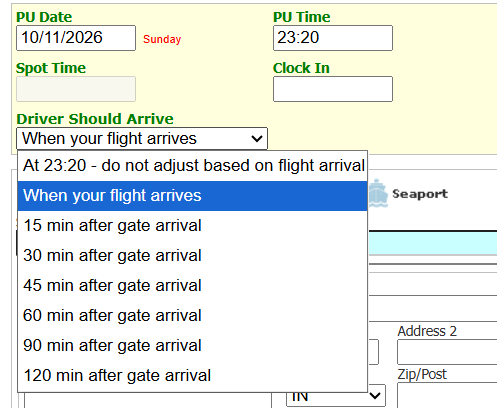
Select “Do not adjust based on flight arrival” when the reservation must retain its scheduled pickup time. This may apply when the client requested a specific time or the trip is part of a larger coordinated movement.
Although multiple flights can be tracked within one reservation, only the arrival flight associated with the pickup can automatically adjust the reservation’s pickup time.
Displaying Flight Information in the Original Dispatch Grid
FlightStats information can be added to the original Dispatch Grid so dispatchers can monitor flights within their normal workflow.
To add these fields:
- Click the “Dispatch” icon.
- Select “Grid Setup” and navigate to the “Grid Setup” tab
- Select the FlightStats fields you want to display.
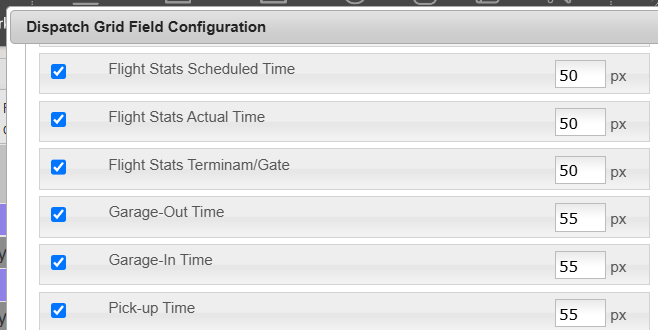
- Click “Update the Dispatch Grid” to save changes to the grid
Available fields include:
- FlightStats Scheduled Time
- FlightStats Actual Time
- FlightStats Terminal/Gate
- FlightStats Status
Displaying Flight Information in New Dispatch
Flight information is also available in the New Dispatch interface. Users can add and arrange the applicable FlightStats fields through the available Dispatch setup or column options.
To add these fields:
- Select the three-dot menu in the upper-right corner
- Click “Dispatch Settings”
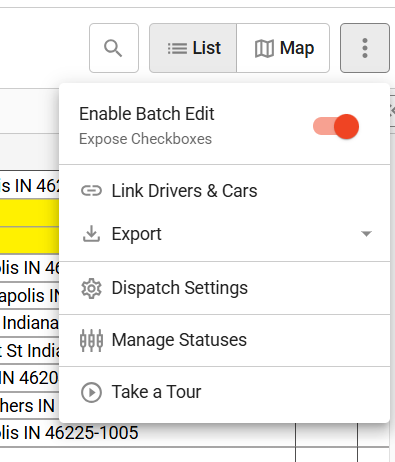
3. Use the search bar to find the desired columns
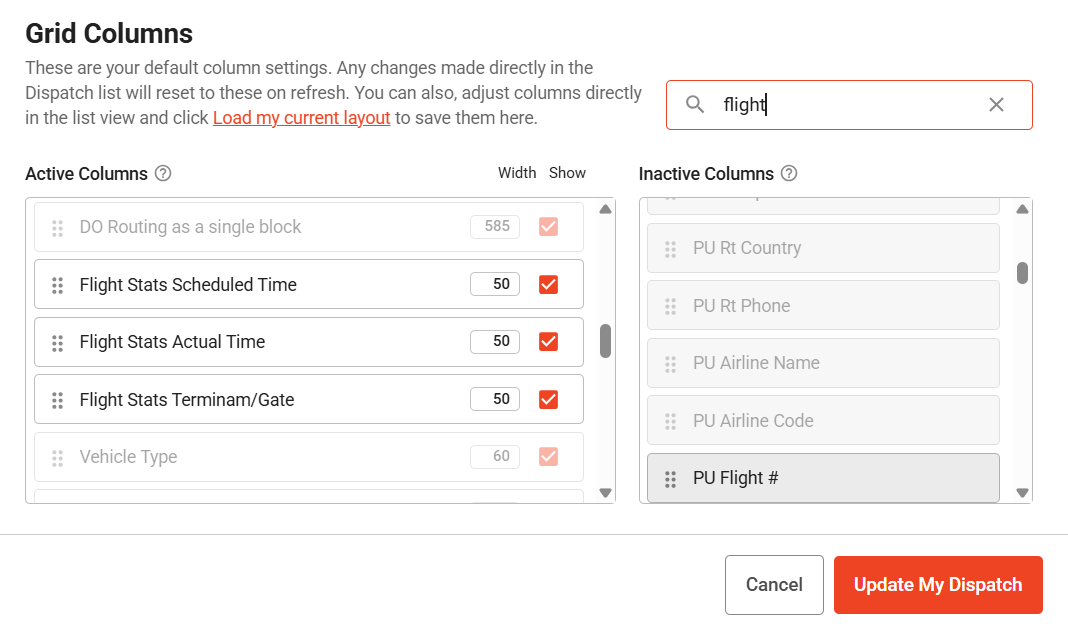
- Check the options you want to display
- Click the “Update My Dispatch” button to save changes
Accessing FlightAware and FlightView
Both the original Dispatch Grid and New Dispatch provide direct access to FlightAware and FlightView for additional flight review.
Original Dispatch Grid
To access a flight from the original Dispatch Grid:
- Right-click the applicable reservation
- Hover over “Flight Tracker”
- Select "Flight Aware" or "Flight View"
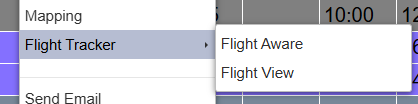
If the reservation contains multiple tracked flights, Limo Anywhere may prompt the dispatcher to select the flight they want to review.
New Dispatch
In New Dispatch, right-click the applicable trip and select either Flight Aware or Flight View from the menu.
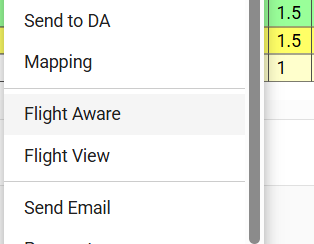
These shortcuts allow dispatchers to review the selected flight through another tracking service without manually searching for the airline, flight number, and travel date.
FlightAware and FlightView can be useful when a flight does not verify, the displayed information appears incomplete, or a dispatcher wants to compare another available source.
In Part 4 of this series, we will review reservations with multiple flights, codeshare itineraries, cancellations and diversions, conflicting flight information, and what operators should include when reporting a discrepancy to Limo Anywhere Support.
Recent Posts

Managing Multiple Flights and Troubleshooting Flight-Tracking Issues in Limo Anywhere
Thursday September 24, 2026
Why Customers Still Call Instead of Booking Online
Friday September 18, 2026