Scheduled Messaging Best Practices for In-House, Farm-In, and Farm-Out Trips
If your team is setting up Scheduled Messaging in Limo Anywhere for the first time — or reviewing how these templates work with affiliate reservations — this Tech Tip is for you.
Limo Anywhere’s Scheduled Messaging tools make it easy to automate trip-related communication by email and SMS. When set up correctly, they can improve the customer experience, reduce manual work, and keep important contacts informed at the right time.
But when Scheduled Messaging is applied to the wrong trip type, it can also create confusion, especially on affiliate trips.
One common issue operators run into is using customer-facing scheduled messages intended for In-House trips on Farm-In or Farm-Out work. Depending on how the template is configured, that can result in automated pickup reminders, status updates, or other notifications being sent to contacts that were not intended to receive them.
In this Tech Tip, we’ll walk through how Scheduled Messaging work, which settings matter most, and why it is important to review templates carefully for affiliate workflows.
If you need step-by-step setup instructions in addition to these best practices, see the Knowledge Base resources linked at the bottom of this article.
Why This Matters
Scheduled Messaging is flexible. Both Scheduled Messaging allow templates to be configured based on:
- reservation status
- trip type
- message class
- recipient selection
- timing triggers
That flexibility is useful, but it also means operators need to be deliberate in how templates are set up.
If a template is configured for the wrong trip type, or if the message class and recipient settings do not match the intended workflow, the system may send communications in ways the operator did not expect.
That is especially important when working with affiliate trips.
Where to Find Scheduled Messaging
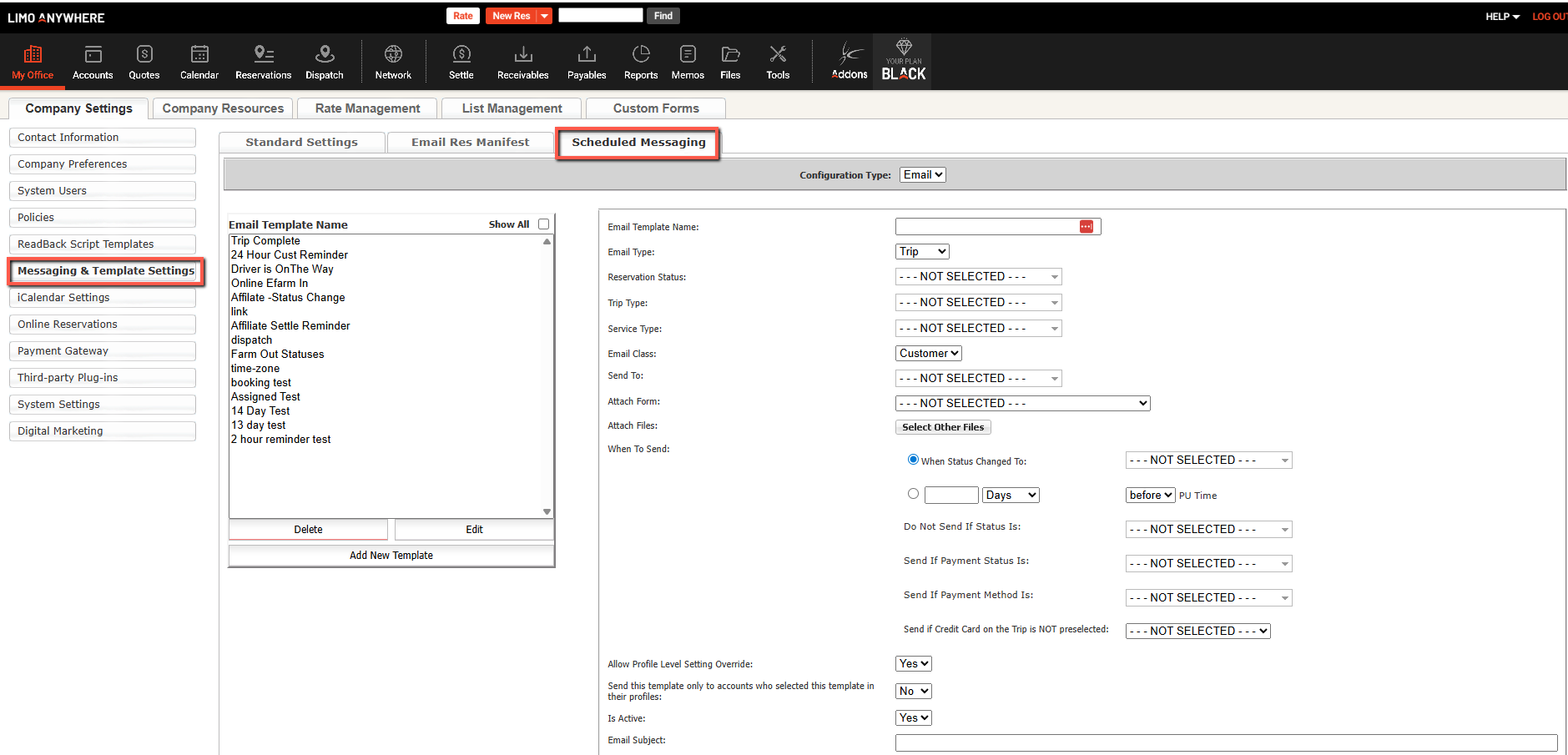
To create or review Scheduled Email and Scheduled SMS templates, navigate to:
My Office > Company Settings > Messaging & Template Settings > Scheduled Messaging
The Three Settings You Should Always Review
Before activating any Scheduled Email or Scheduled SMS template, make sure you review these three settings carefully:
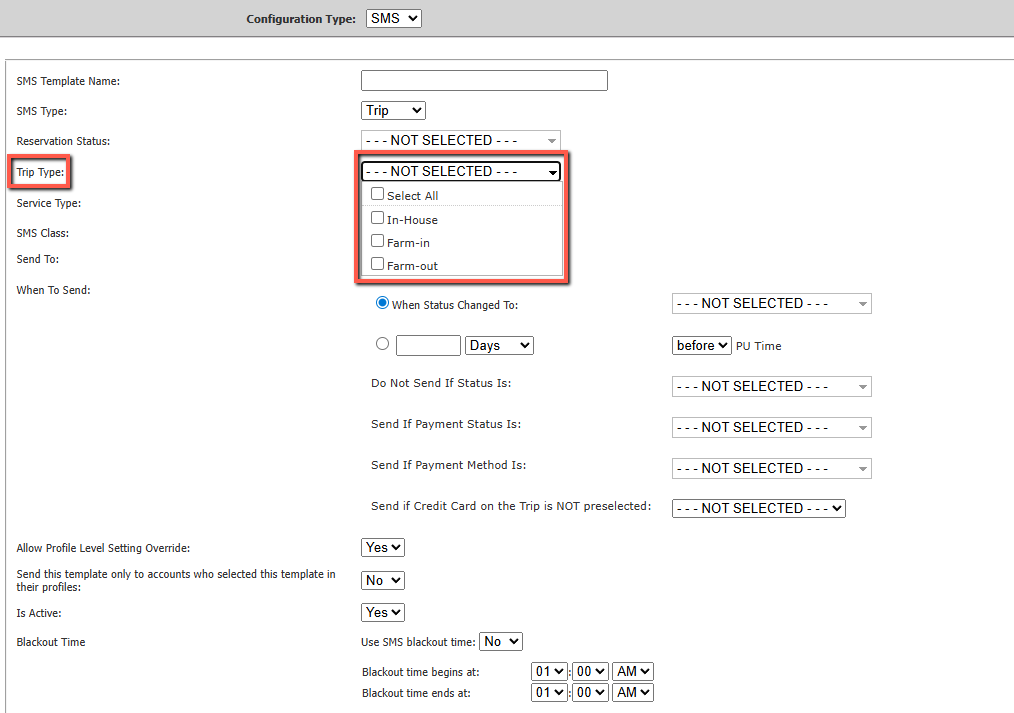
1. Trip Type
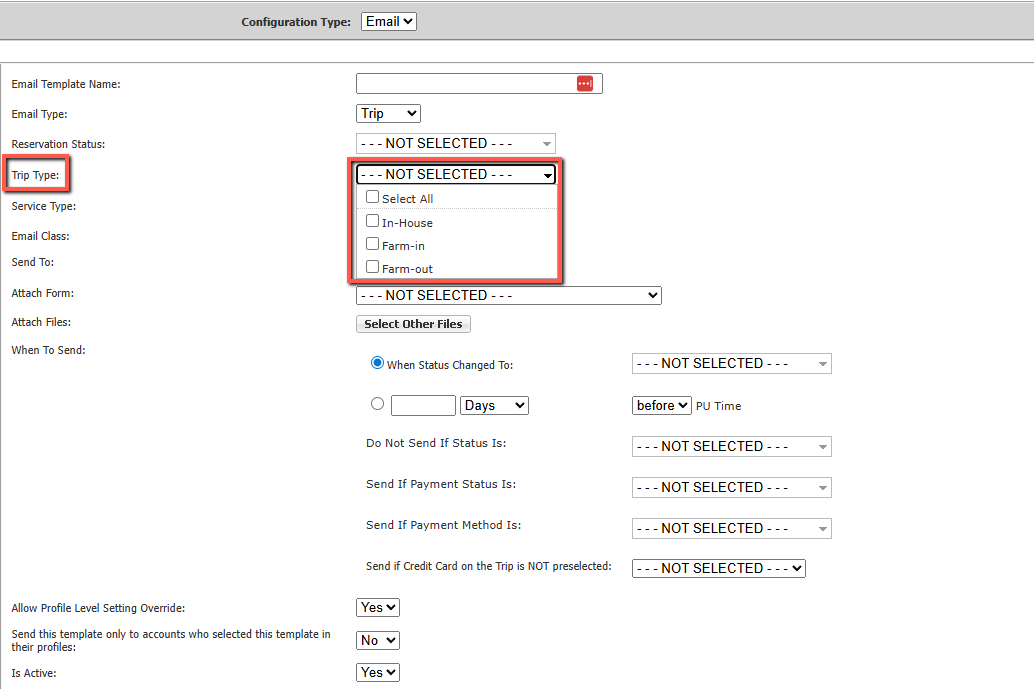
Scheduled Messaging can be assigned to one or more of the following trip types:
- In-House
- Farm-In
- Farm-Out
- Select All
This is one of the most important controls in the setup. A message that makes sense for your direct reservations may not be appropriate for affiliate trips.
As shown in the Scheduled Email and Scheduled SMS setup screens below, each template can be assigned to one or more trip types. That is why reviewing this setting is one of the best ways to reduce unintended messaging.
2. Message Class
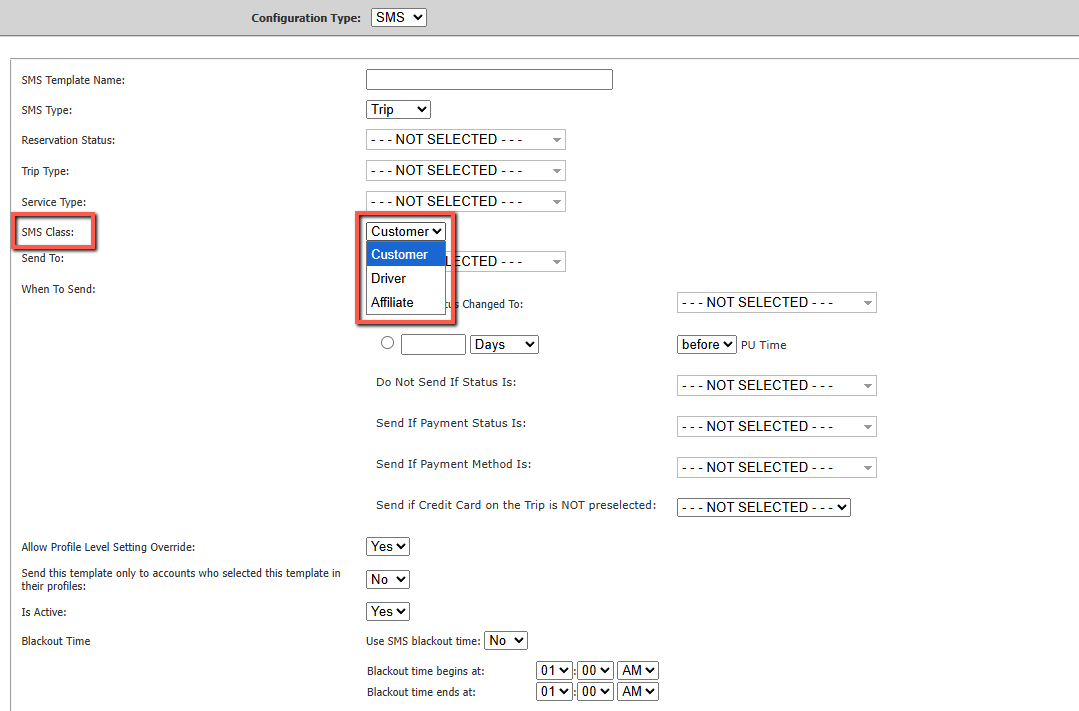
You can also choose which type of contact the message is intended for:
- Customer
- Driver
- Affiliate
The message class determines which type of contact information Limo Anywhere will use when sending the message.
For example, if you select Driver, the system will use the driver’s contact details rather than the customer’s.
In Scheduled SMS, the SMS Class setting helps determine which type of contact the template is intended for — Customer, Driver, or Affiliate — before the recipient is finalized.
3. Send To
After selecting a message class, the Send To field determines the exact recipient.
For customer email templates, that may include:
- Billing Contact
- Passenger
- Booking Contact
- Select All
This is one of the most important settings to review before making a template active.
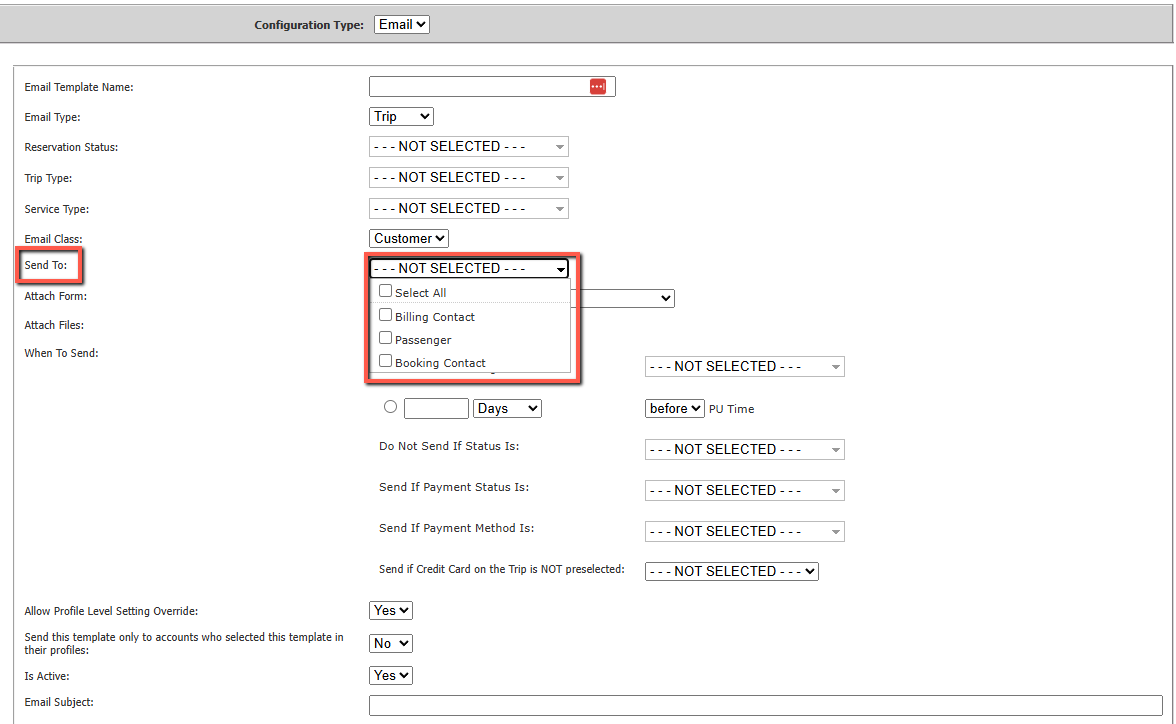
If any one of those settings is wrong, the wrong contact may receive the message.
Quick Guide: In-House vs. Farm-In vs. Farm-Out
In-House
Customer-facing messages often make sense.
Examples:
- 24-hour pickup reminders
- status updates
- arrival notifications
- post-trip follow-up messages
- invoice reminders
Farm-In
Review customer-facing messages carefully before using them.
In many affiliate workflows, the originating operator may already be managing communication with the end customer. Applying the wrong Scheduled Messaging template here can create duplicate or unnecessary communication.
Farm-Out
Configure messaging intentionally based on the workflow.
Depending on how the trip is being handled, communication may need to stay focused on the affiliate relationship rather than simply copying a standard In-House customer template.
Best Practices for In-House Trips
For In-House reservations, customer-facing Scheduled Messaging often makes sense.
Common examples include:
- 24-hour pickup reminders
- status updates
- arrival notifications
- post-trip follow-up messages
- invoice reminders
Because these are your company’s direct reservations, these types of messages are often part of the normal customer communication workflow.
If you are building a reminder or status message intended for your own passengers, In-House is often the correct trip type.
Best Practices for Farm-In Trips
For Farm-In reservations, operators should review customer-facing Scheduled Messaging more carefully.
In many affiliate workflows, the originating operator may already be managing communication with the end customer. If your company also sends automatic reminders or updates to that passenger, it can create:
- duplicate communication
- mixed branding
- conflicting updates
- confusion for the traveler
As a best practice, do not assume that a customer-facing message used for In-House trips should also be used for Farm-In trips.
Unless there is a specific reason to do otherwise, templates applied to Farm-In reservations should be reviewed closely to make sure the message, recipient, and purpose all align with the workflow.
An Important Note About Affiliate Settings
There is one detail in Scheduled Messaging setup that deserves special attention:
That distinction is important because it affects how operators should think about recipient selection. It is also a good reason to test affiliate-related templates carefully before making them active.
Best Practices for Farm-Out Trips
For Farm-Out reservations, Scheduled Messaging should also be configured intentionally and not simply copied from a standard In-House template.
Depending on the workflow, the originating operator may remain the primary point of communication with the customer while the affiliate fulfills the service. If communication is needed with the affiliate, make sure the template is set up with the correct Trip Type, Message Class, and recipient settings.
Not Every Affiliate Workflow Handles Passenger Communication the Same Way
Not every affiliate workflow follows the same communication model. Some operators prefer all passenger communication to remain with the booking company, while others intentionally allow the servicing affiliate to send limited status updates directly to the passenger.
Because of that, there is not one universal messaging rule that fits every Farm-In or Farm-Out reservation. What matters most is that Scheduled Email and Scheduled SMS templates are configured intentionally so they match the operator’s actual workflow.
That is especially important when reviewing customer-facing templates for affiliate trips. A message that is appropriate for one affiliate relationship may be unnecessary or confusing in another.
Branded Messages vs. White-Label Status Updates
When reviewing affiliate-related templates, operators should look at more than just whether a message is sent. They should also review the content and branding of the message itself.
In some workflows, a neutral status update may be acceptable. In others, a branded confirmation, promotional message, or “thank you for using <company name>” communication from the servicing affiliate may create confusion for the traveler.
That is why template review should include both configuration and message content. Even when the Trip Type, Message Class, and Send To settings are correct, the wording of the message may still need to be adjusted for affiliate use.
Passenger Contact Information Should Be Reviewed Carefully
Some operators also use internal workflow rules for how passenger contact information is stored on affiliate reservations, especially when they want to avoid customer-facing automations using that information unintentionally.
For that reason, Scheduled Messaging settings should be reviewed alongside the company’s broader affiliate workflow. If a reservation includes passenger contact information, operators should confirm that active templates will use that information only in the way they intend.
Template Control May Still Require Testing
In some workflows, operators may want more granular control than a single Trip Type setting provides. That is one reason why testing matters so much before a template is made active more broadly.
When testing Scheduled Email or Scheduled SMS, do not check only whether the template sends. Also confirm exactly which contact receives it on sample In-House, Farm-In, and Farm-Out reservations.
A template may appear correct based on its wording and trigger, but the true test is whether it reaches the intended recipient in the intended workflow.
Why Extra Scheduled Messages May Not Be Necessary on Connected Affiliate Trips
In some connected affiliate workflows, extra scheduled messages may not be needed at all.
For example, trips exchanged through LA Net are transferred electronically between operators. In similar electronically connected affiliate workflows, operators may already be receiving updates through the system, which can reduce the need for additional scheduled reminders or status messages.
That is why operators should think carefully before applying customer-facing Scheduled Messaging to affiliate trips. In some cases, additional automation may be helpful. In others, it may create duplicate communication without adding value.
Example: Reviewing an Affiliate Status Update Template
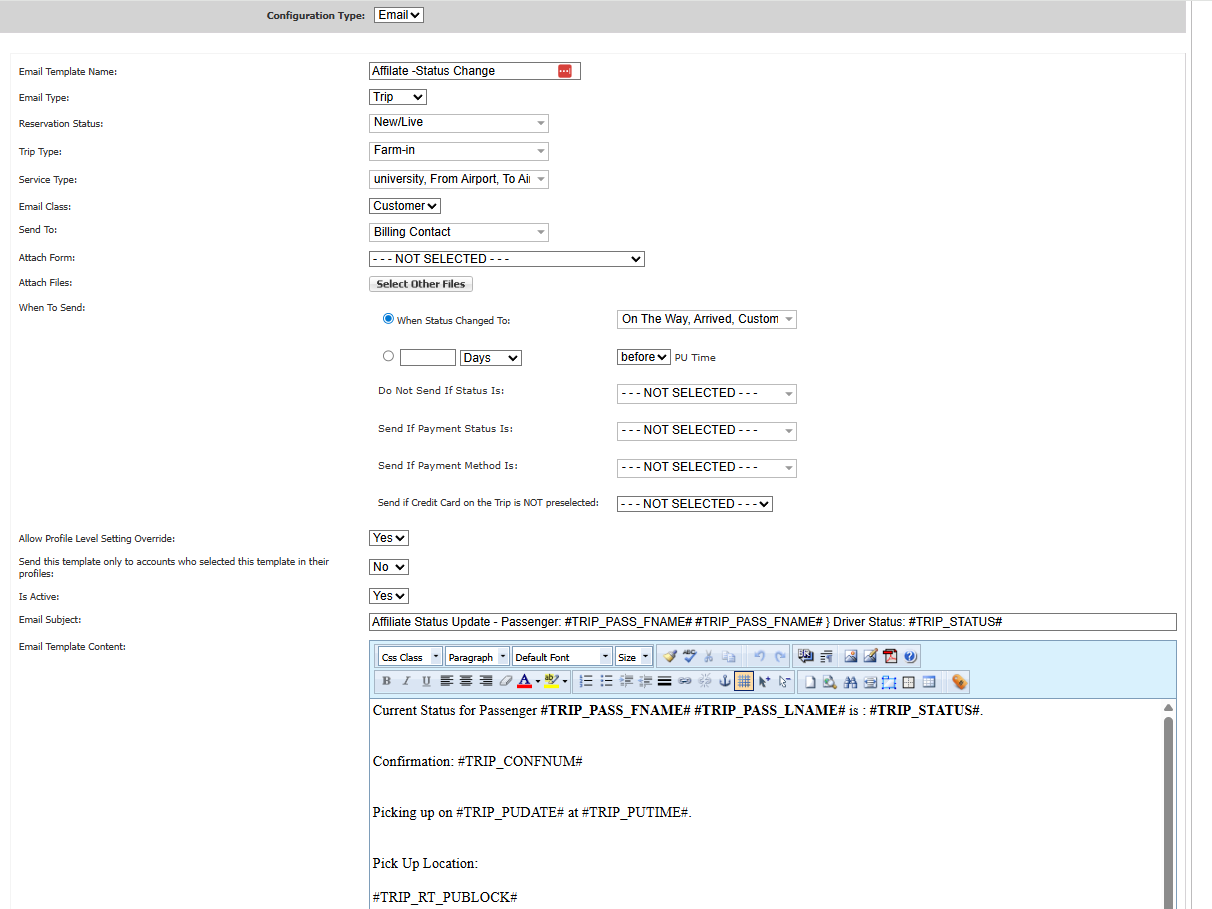
The example below shows how a Scheduled Email template can be configured for an affiliate-related workflow.
In this case, the template is set to:
- Trip Type: Farm-in
- Email Class: Customer
- Send To: Billing Contact
This is a good reminder that operators should review more than just the template content. Even if the subject line and message body are correct, the Trip Type, Email Class, and Send To settings still determine how the message behaves and who receives it.
For affiliate-related templates, those settings should always be checked carefully before the template is made active.
A Common Mistake to Avoid
Here’s a typical example:
An operator creates a 24-hour pickup reminder or a customer-facing status update for direct reservations. The content of the message is fine, but the Trip Type is set too broadly or includes Farm-In when it was really intended only for In-House use.
The result: that message may also go out on affiliate reservations where it is not needed, or where it does not match the intended communication flow.
A better approach is to build customer-facing reminder and status templates specifically for In-House use unless there is a clear operational reason to apply them more broadly.
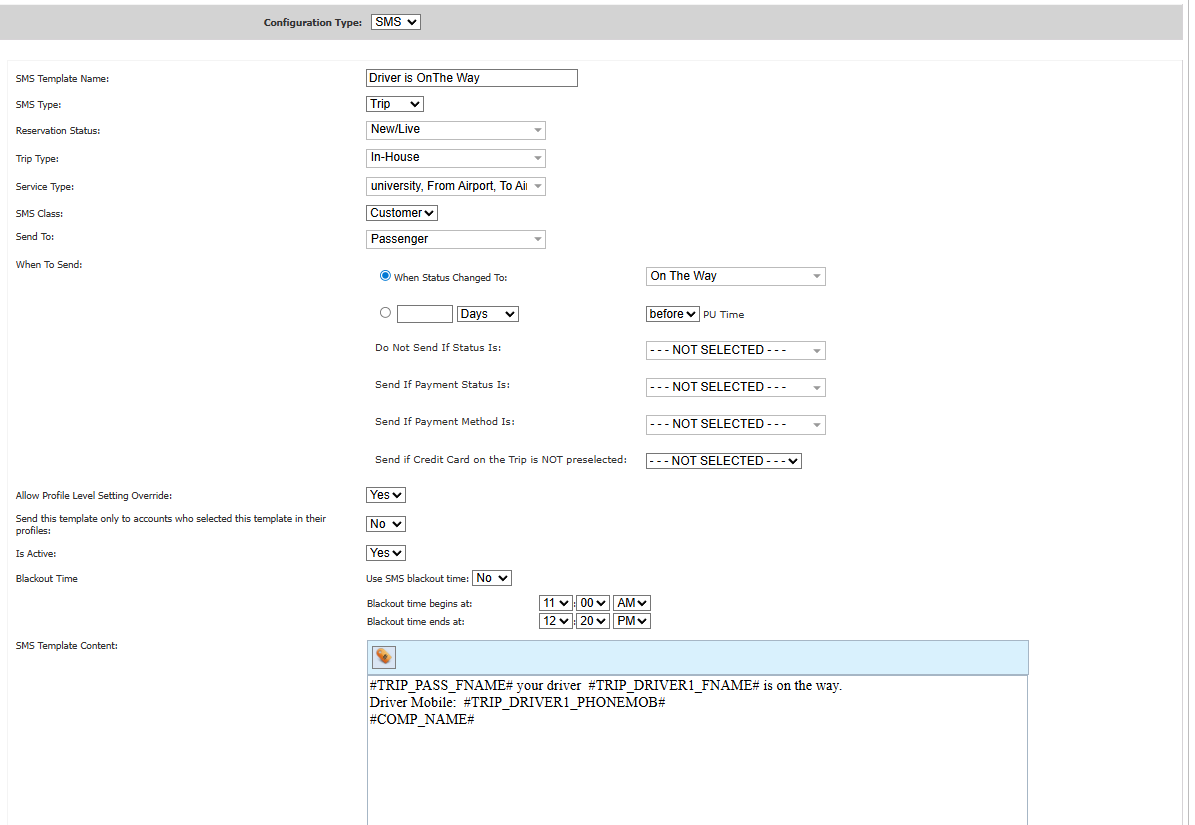
Example: An In-House Status Update SMS
The example below shows a Scheduled SMS template configured for an In-House reservation only.
In this case, the template is set to:
- Trip Type: In-House
- SMS Class: Customer
- Send To: Passenger
- When To Send: When status changes to On The Way
This is a good example of a customer-facing status message that has been limited to the workflow it is intended to support. By keeping this template restricted to In-House trips, operators can reduce the risk of applying the same SMS to affiliate reservations where the communication flow may be different.
A Good Testing Habit
Before activating a new Scheduled Messaging template broadly, test it on a sample reservation and confirm:
- the correct trip type
- the correct message class
- the correct Send To recipient
- the intended timing trigger
- the actual contact who would receive the message
A quick test can help catch setup issues before they affect real reservations.
Setup Checklist Before You Activate a Scheduled Message
Before turning on any Scheduled Messaging template, ask:
- Is the Trip Type correct?
- Is this template really intended for In-House, Farm-In, Farm-Out, or only one of those?
- Is the Message Class correct?
- Does Send To point to the right contact?
- Could this message create confusion on an affiliate reservation?
- Is the trip already being updated through an electronically connected affiliate workflow?
- Has the workflow been tested before making the template active?
Taking a minute to review these settings can help reduce duplicate communication and ensure that the right contact receives the right message at the right time.
Related Resources
For step-by-step setup instructions, see these Knowledge Base articles:
- How-to Use the Scheduled Email Module
- How-to Utilize the Scheduled SMS Module
- How to Farm Out Trips to Affiliates Who Don’t Use Limo Anywhere
Final Takeaway
Scheduled Messaging is one of the most useful automation tools in Limo Anywhere, but it works best when it is aligned with the actual workflow of the reservation.
For In-House trips, customer-facing messages often make sense.
For Farm-In and Farm-Out trips, those same messages may need a closer review.
Before activating any template, always check:
- Trip Type
- Message Class
- Send To
That extra step can help prevent accidental messaging, support cleaner affiliate workflows, and improve the overall communication experience for everyone involved.
If you have not reviewed your Scheduled Messaging templates recently, now is a good time to audit them — especially any templates that apply to affiliate trips.
Recent Posts

Erica Bugbee Joins Limo Anywhere
Thursday October 8, 2026
Limo Anywhere Webinar
Wednesday October 7, 2026