Using Fleet Notes and Scheduled Messaging in Limo Anywhere
When you're managing a busy operation, there may be important pieces of vehicle information that need to be communicated to chauffeurs before a trip. Maybe a vehicle in your fleet has a feature that works differently than the rest of the fleet, a repair that still needs attention from the shop, or special instructions that need to be reviewed before the chauffeur begins service.
Instead of relying entirely on manual communication and increasing the potential for human error, you can use the Fleet Notes field in Limo Anywhere alongside Scheduled Messaging to automatically deliver that information to chauffeurs.
Adding Notes to a Vehicle in Your Fleet
- Click the "My Office" icon in the Navigation Bar.
- Under the “Company Resources” tab, select Fleet from the lefthand menu.
- Locate the vehicle you would like to update and click the “Edit Vehicle” button to open the vehicle profile.
- Find the “Notes” field within the vehicle profile.
- Enter the vehicle-specific information you would like to make available through Scheduled Messaging. This might include prep instructions, temporary vehicle notices, pending repair details, or reminders tied to that specific vehicle.
- Review the note before saving to make sure the information is clear, current, and easy for the chauffeur to understand.
- Click "Update Vehicle" to save your changes.
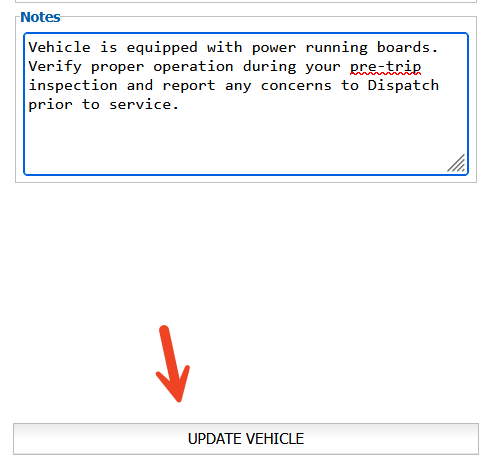
Once saved, those notes can be pulled into Scheduled Messaging templates using dynamic tags.
Creating a Scheduled Message
- Click the "My Office" icon in the Navigation Bar.
- Under the “Company Settings” tab, select Messaging & Template Settings from the lefthand menu.
- Select “Scheduled Messaging”.
- Use the drop-down menu to choose whether you would like to create an Email or SMS template.
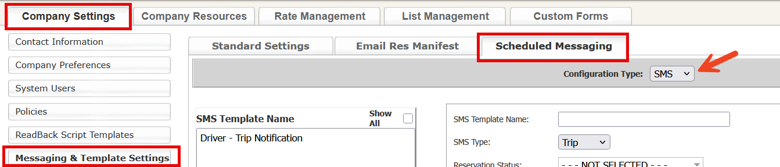
- Click the "Add New Template" button to create a new message, or select an existing template if you would like to update a message that is already in use.
- Configure the template settings based on when and how the message should be sent.
- Messages can be triggered by reservation status updates or scheduled to send a certain number of Days, Hours, or Minutes before pickup.
- Enter the message content you would like your chauffeur to receive.
- Insert the appropriate dynamic tag for the vehicle note. In this example, the Vehicle Notes tag is: #TRIP_CAR1_NOTES#
- To insert additional dynamic tags, click the yellow “Tags” icon (
) within the message editor and select the tag that matches the information you would like to include.
- Review the full message before saving, especially if you are creating an SMS template.
- Click "Save" to update your template.
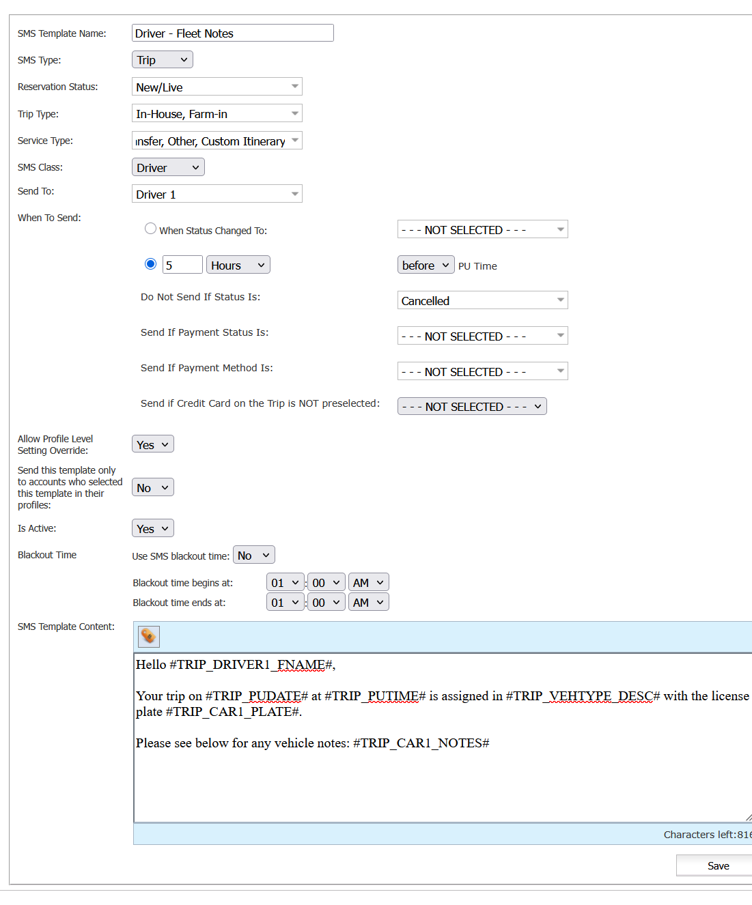
Once configured, chauffeurs will automatically receive the message based on the parameters established within the Scheduled Message.
NOTE: If there is no note associated with the assigned vehicle, the #TRIP_CAR1_NOTES# field will remain blank when the message is sent.
Considerations for SMS Messaging
If you're utilizing SMS templates, it's important to be aware of message length.
Scheduled SMS messages in Limo Anywhere are limited to 1024 characters, including both your typed message content and any populated dynamic tags.
A message might look short while building the template, but once reservation data populates dynamically, it can become much longer than expected.
A few best practices:
- Keep Fleet Notes short and easy to skim
- Avoid overloading a single SMS template with too many dynamic tags
- Use Email templates for longer operational instructions when appropriate
- Periodically review older vehicle notes to make sure outdated information is removed
- Consider utilizing multiple Scheduled Messages when communicating different types of information to help keep individual messages concise
Fleet Note Use Cases
Here are a few examples of how operations commonly utilize Fleet Notes with Scheduled Messaging.
Special Prep Instructions
- "Wedding signage is stored in rear cargo area."
- "Please restock bottled water before first trip."
- "Rear luggage compartment latch occasionally requires additional pressure to close fully."
Vehicle Notices or Pending Repairs
- "TPMS warning light is currently active. Tire pressure has already been verified by the shop."
- "Passenger-side charging port is temporarily unavailable."
- "Fuel gauge calibration is slightly delayed. Please monitor fuel levels closely."
Special Instructions for Vehicle Features
- "Bluetooth audio may need to be re-paired after restarting the vehicle."
- "Wheelchair ramp controls are located beneath the driver-side access panel."
- "Rear climate controls are locked from the front console only."
Scheduled Messaging can be a helpful way to close communication gaps between the office and chauffeurs, especially when vehicle-specific information needs to be communicated consistently.
Whether you're sharing prep reminders, temporary shop notices, or operational details about a specific vehicle, utilizing Fleet Notes alongside Scheduled Messaging can help reduce confusion and cut down on last-minute phone calls and texts.
We’d love to hear how your operation is utilizing Scheduled Messaging and Fleet Notes. Share your ideas and workflows in the Limo Anywhere Peer Support Facebook Group.
If you have any questions, feel free to contact Support at 972-701-8887 x2 or email Support@LimoAnywhere.com. Suggestions and product feedback can also be sent to ProductTeam@LimoAnywhere.com.
Recent Posts
Introducing Trip Timeline: See When and Where Each Trip Step Happened
Thursday October 22, 2026
Holiday Taxis Integration
Wednesday October 21, 2026