Using Auto-Quote Blocking in Lead Quote Close: Complex Trips and Auto-Lost Leads
In the first part of this blog, we covered how Auto-Quote Blocking can help manage short-notice requests, high-demand dates, and vehicle or venue restrictions.
Auto-Quote Blocking can also be used when an itinerary needs customized attention, a request falls outside your normal operating area, or your company has made a documented decision not to accept a particular type of booking.
Reviewing Complex Itineraries
Trips with multiple stops, extended service times, long travel distances, or substantial deadhead may require manual review before an accurate rate can be provided.
Policies can be created using Selection Factors such as:
- Number of stops
- Total trip hours
- Total trip miles
- Distance to the pickup
- Distance from the drop-off
- Passenger count
- Number of child seats requested
For example, an itinerary with several stops may benefit from a conversation with your team before a quote is provided. Depending on the customer’s schedule and transportation needs, it may be more appropriate to arrange the itinerary as two transfers with applicable stop fees or as an hourly charter.
Blocking the automatic quote gives your team an opportunity to review the itinerary, explain the available options, and help the customer select the service structure that best fits the trip.
Because the request may still be accommodated, the policy should not normally mark the lead as Auto-Lost. This keeps the request available for your team to review and follow up manually.
Configuring Regions for Location-Based Policies
Before creating an Auto-Quote Blocking policy based on a location, the applicable address or geographic area must first be configured as a Region. This includes policies intended to block a single pickup, drop-off, or stop address.
To create a Region:
- Click the “Addons” icon in the top navigation bar.
- Scroll to and hover over “Resources” in the left-hand menu.
- Select “Regions.”
- Create a new Region using the option that best matches the location or area you need to identify.
Regions can be configured based on:
- City
- State
- Country
- ZIP code
- Point of Interest
- Specific Address
- Airport
- FBO
- Rectangle
- Polygon
- Group
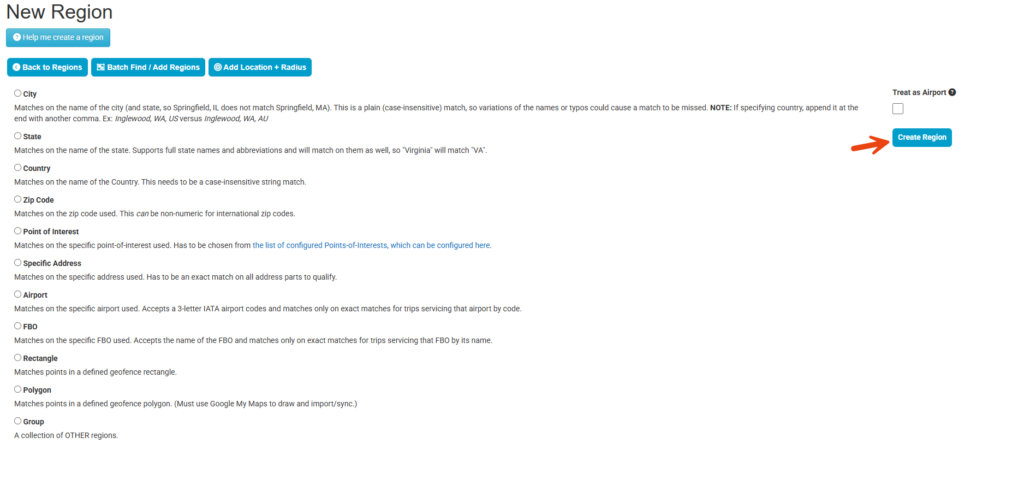
The appropriate Region type depends on how narrowly the policy should apply. To create a policy for one address, configure the location as a Specific Address Region. A Rectangle or Polygon can cover a broader geographic area, while a Group can combine multiple existing Regions.
Airport and FBO Regions may also be useful when your company does not have the operating authority, permit, or other authorization required to provide service at a particular airport. The Region can then be used to prevent automatic quotes for trips that include that location.
It is important to select the Region type carefully. Specific Address Regions require the address information to match, while broader geographic Regions may affect every qualifying request within the defined area.
Once the Region has been created, it can be used with location-based Selection Factors such as First Pickup In Zone, First Drop-off In Zone, or Contains Stop In Zone when configuring the Auto-Quote Blocking policy.
Managing Trips Outside Your Service Area
Once your Regions have been configured, zone-based Selection Factors provide more flexibility than blocking an entire city or ZIP code.
Policies can identify whether:
- The first pickup is inside or outside a zone
- The first drop-off is inside or outside a zone
- Any stop falls inside or outside a zone
- The trip remains inside or outside your operating area
- The pickup or drop-off exceeds a particular distance
This allows you to consider how the trip will operate rather than treating every out-of-area request the same way.
For example, you may accept a trip that begins locally and travels outside your service area while requiring additional review for one that both begins and ends several hours away.
If affiliate coverage or another arrangement may be possible, the lead can remain available for follow-up. Your team can then review the request and help the customer determine whether another option is available.
Managing High-Risk Requests
There may be situations in which your company has made a documented decision not to accept future reservations from a particular customer. This may follow repeated chargebacks, fraudulent booking activity, nonpayment, threats, abusive conduct, or another serious policy violation.
Depending on the circumstances, Auto-Quote Blocking policies can use Selection Factors such as:
- Customer Email Address
- Customer Phone Number
- First Pickup In Zone
- First Drop-off In Zone
- Contains Stop In Zone
More than one policy may be helpful if the individual has previously submitted requests using different names or contact information.

When using an address-based policy, the address must first be configured as a Specific Address Region. The Region can then be used to identify whether it appears as the first pickup, first drop-off, or another stop within the requested itinerary.
The customer-facing message should remain polite and neutral. It should not disclose internal records or make unnecessary allegations:
Additional Assistance Is Required
We’re unable to process an online quote involving the location provided. If you believe you received this message in error, please contact our team so we can review your request.
Providing a contact option is especially important when using an address-based policy. An unrelated customer may eventually request service involving the same location.
Marking a Lead as Auto-Lost
Blocking a quote and marking the lead as Auto-Lost serve different purposes.
When a quote is blocked without Auto-Lost enabled, the customer receives the configured blocked-reason message and the lead remains available for your team to review and follow up manually.
You may want to retain the lead when:
- Another vehicle may work
- The itinerary can be adjusted
- Availability requires manual confirmation
- Affiliate coverage may be available
- A customized rate is required
When Auto-Lost is enabled, the lead will not remain available for your team to pursue through the normal manual follow-up process.
Auto-Lost may be appropriate when:
- Your company will not accept future reservations from the customer
- The request falls outside an absolute service limitation
- The trip involves an airport or another location where your company does not have the authority required to operate
- The requested service cannot be provided
- No alternative arrangement will be considered
- Your team does not intend to pursue the lead
If an authorized affiliate may be able to provide the service, the lead should generally remain available so your team can review the request and assist the customer.
Before activating a policy, consider the desired outcome and make sure the Blocking Behavior, Auto-Lost setting, and customer-facing message all support the appropriate next step.
Whether you need help configuring Auto-Quote Blocking policies and Regions or want to add Lead Quote Close to your account, our team is here to help. Contact Support at 972-701-8887 x2 or support@limoanywhere.com for configuration assistance or contact Sales at 972-701-8887 x1 or sales@limoanywhere.com to discuss adding Lead Quote Close or exploring the features available with another tier.
Recent Posts
Why Customers Still Call Instead of Booking Online
Friday September 18, 2026
See Limo Anywhere Plus & Black in Action: Webinar Replay
Thursday September 17, 2026