GroundXchange Self-Registration Is Now Live in Limo Anywhere
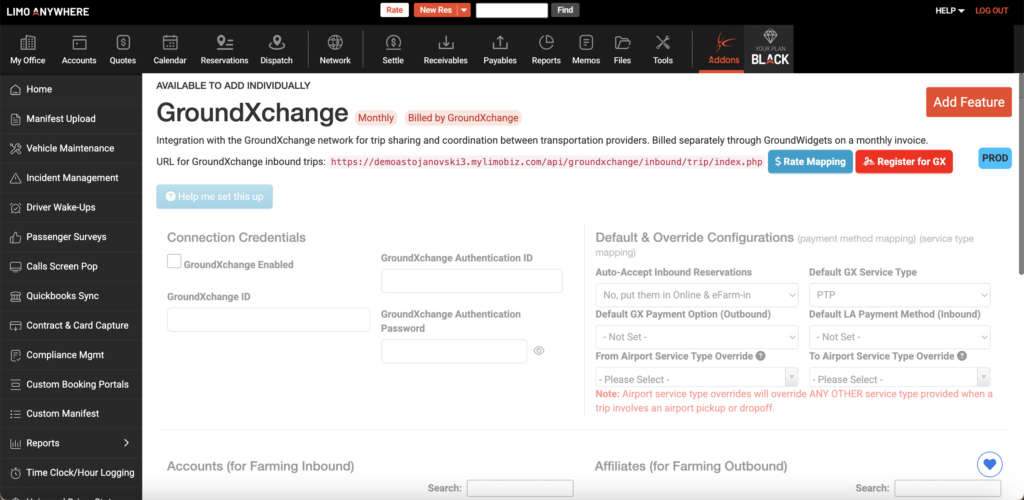
GroundXchange (GX) Self-Registration is now live inside Limo Anywhere—making it easier than ever to activate connectivity and expand your affiliate network without manual coordination or complex setup.
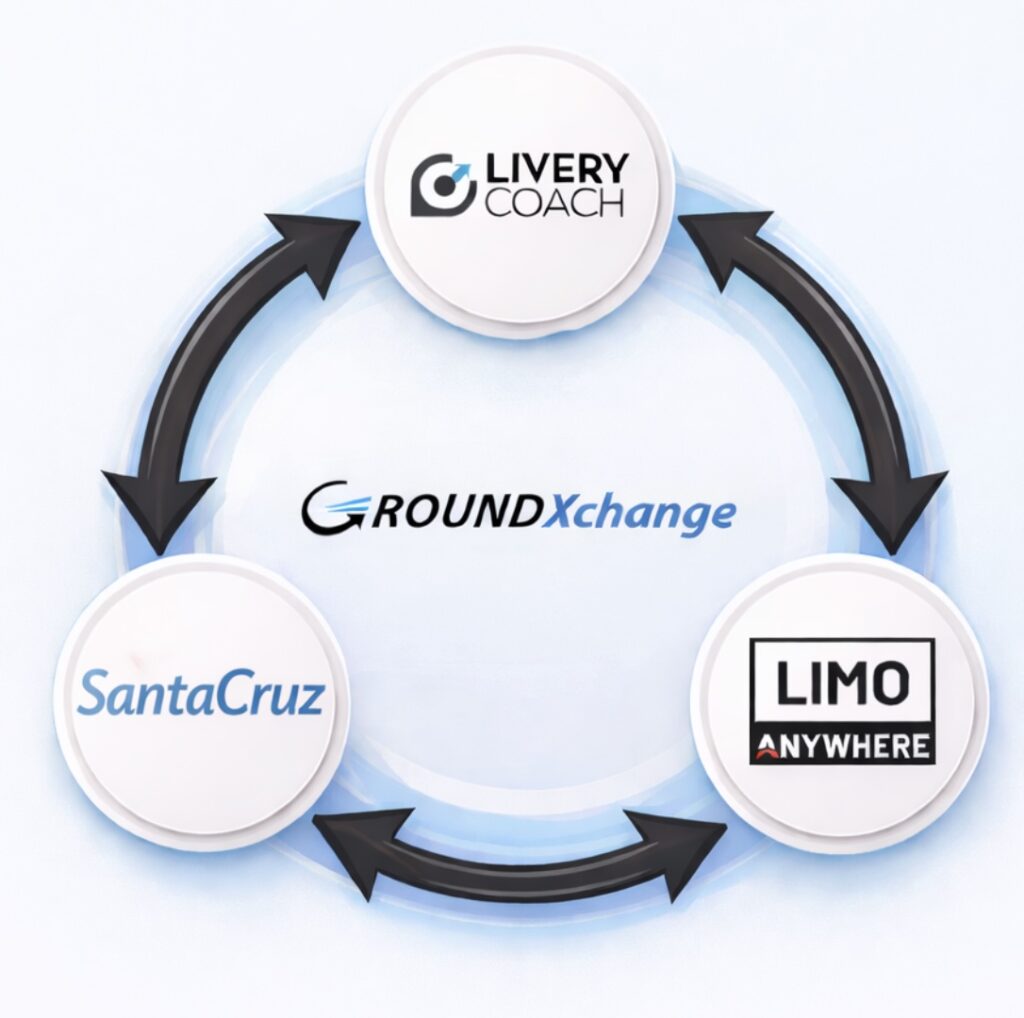
GroundXchange enables seamless trip exchange between SantaCruz, Livery Coach, and Limo Anywhere, allowing you to send and receive affiliate trips across platforms while maintaining:
- Real-time status updates
- GPS tracking visibility
- Driver and vehicle information updates
- Final charge transmission at closeout
This is the same bidirectional integration you already know—now with a faster way to get connected.
What is GroundXchange?
GroundXchange (GX) is a real-time integration platform designed to automate the exchange of reservations, dispatch updates, and ride closeout data between ground transportation providers.
With GX, operators can:
- Farm-Out trips to affiliates
- Farm-In trips directly into Limo Anywhere
- Process New, Change, and Cancel transactions
- Receive automated progress updates with GPS tracking
- Transmit final trip charges for faster billing
Inside Limo Anywhere:
- Outbound trips are clearly identified as affiliate work, and once transmitted you’ll see the affiliate confirmation number in the Reference # field.
- Inbound trips are treated as in-house reservations, with the GroundXchange confirmation number stored in the PO Reference # field
What’s New: Self-Onboarding (Self-Registration)
With Self-Registration now live, you can begin the onboarding process directly from within Limo Anywhere—no back-and-forth coordination required to start your application.
To follow the step-by-step walkthrough, visit our Knowledge Base:
GroundXchange Self Onboarding Process
Self-registration steps (quick overview)
- Go to Addons → Settings → GroundXchange
- Click Register for GX
- Complete and submit the registration form (some fields may be pre-filled)
- Review and accept the GroundXchange Terms & Conditions (opens in a new browser tab)
- Important: Make sure pop-ups are enabled in your browser
- Review and confirm your application
- Wait for approval (you’ll receive a confirmation email from the GX team)
After Approval: Complete Your GX Setup & Mappings
Once GX is enabled on your account, configuration and mapping are required for the integration to function correctly.
Use the full setup guide here:
Limo Anywhere & GroundXchange Setup Instructions
1) Confirm Connection Credentials
Navigate to: Addons → Settings → GroundXchange → Connection Credentials
- Check GroundXchange Enabled
- Enter your GroundXchange ID / Participant Code
- Enter your Authentication ID and Authentication Password
- Click Save
Note: These values may already be pre-filled if you completed the Self-Registration process.
2) Configure Default & Override Settings (recommended)
Set preferences such as:
- Auto-Accept Inbound Reservations (auto-create reservations vs. place into a review tab)
- Default GX Service Type Mapping (commonly Point-to-Point / PTP)
- Default GX Payment Option (Outbound) (commonly IN for invoice)
- Default LA Payment Method (Inbound) (commonly BILL for Direct Bill Invoice)
- Airport service overrides (helpful for SantaCruz trips where “Airport” may not distinguish To/From)
3) Complete All Required Mappings
These mappings ensure accurate status tracking and clean billing from booking through closeout.
Important: All five mapping categories must be completed:
- Service Types
- Rate Mappings
- Payment Methods
- Vehicle Types
- Statuses
If mappings are incomplete, you may see errors or missing data.
Rate Mapping path (exact):
Addons → Resources → Mapping to LA
4) Accounts & Affiliates (GX ID placement is required)
For successful trip exchange, the GX ID / Participant Code must be entered in the appropriate profile:
- Accounts (Inbound): Addons → Resources → Accounts → enter GroundXchange ID
- Affiliates (Outbound): Addons → Resources → Affiliates → enable GroundXchange and enter Participant Code
Viewing GroundXchange Trips
You can view trips received from GroundXchange in:
Addons → Trips → GroundXchange
Ready to Get Started?
GroundXchange Self-Registration is now available in your Limo Anywhere account.
Need help? Contact Limo Anywhere Support:
- Phone: 972-701-8887 (Option 2)
- Email: support@limoanywhere.com
- Hours: 7 AM – 7 PM Central Time
Recent Posts

Erica Bugbee Joins Limo Anywhere
Thursday October 8, 2026
Limo Anywhere Webinar
Wednesday October 7, 2026