Best Practices Series: Taking a Vehicle Out of Service in Limo Anywhere

Vehicles come in and out of service for all kinds of reasons—scheduled maintenance, unexpected repairs, or permanent fleet changes. The key is making sure your system reflects that change clearly so your team doesn’t accidentally assign or quote the wrong vehicle.
Limo Anywhere gives you a few simple tools to manage this. Each serves a different purpose, and using the right combination keeps your operation accurate and your team aligned.
Three Tools
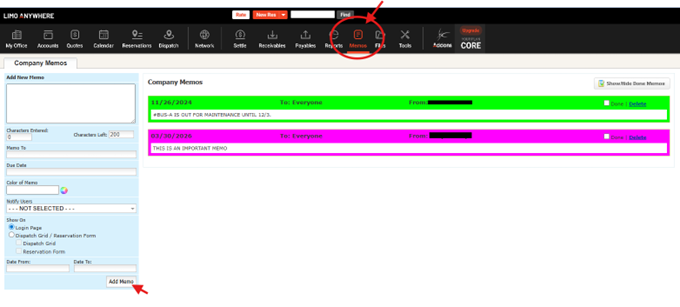
1. Memo (Limo Anywhere Memo Function)
The Memo function in Limo Anywhere is a powerful way to communicate important operational updates to your team.
Use it to:
- Alert CSRs and dispatchers that a vehicle is unavailable
- Provide context (e.g., “Sprinter 12 out of service – transmission repair”)
- Share timing details when known
What it does:
- Displays a visible alert within the system
- Ensures your team sees important updates in real time
What it does not do:
- Prevent the vehicle from being booked or assigned
2. Service Type + Reservation (e.g., “Maintenance”)
For planned downtime, you can block a vehicle by creating a reservation using a dedicated Service Type such as Maintenance.
Use it to:
- Reserve the vehicle during a defined time period
- Show unavailability directly on the Dispatch Grid
- Prevent double-booking
What it does:
- Reserves the vehicle just like any other trip
- Makes the unavailability visible to dispatch
What it does not do:
- Remove the vehicle from future availability outside that time window
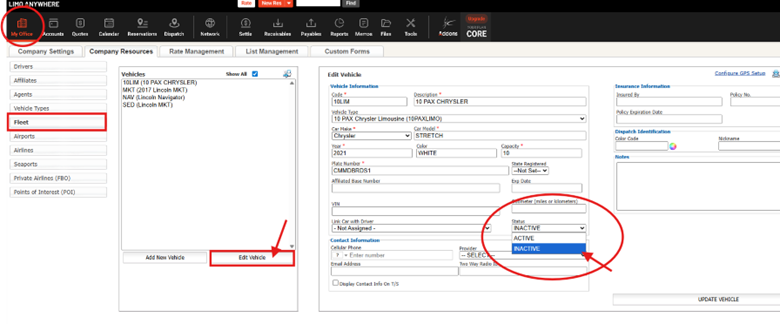
3. Set Vehicle to Inactive (Fleet List)
Marking a vehicle as Inactive removes it from active use.
Use it to:
- Take a vehicle out of rotation
- Prevent it from being selected for new reservations
- Remove it from online booking availability
What it does:
- Removes the vehicle from availability across the system
- Prevents future bookings (including online reservations)
Choosing the Right Approach
Scenario 1: Vehicle Removed from Fleet Permanently
Examples:
- Vehicle sold
- Lease ended
- Vehicle retired
Recommended approach:
- Set the vehicle to Inactive
- Send a Memo (e.g., “Sprinter 12 removed from fleet effective 01/15/26”)
This removes the vehicle completely while keeping your team informed.
Scenario 2: Vehicle Out of Service (Indefinite Duration)
Examples:
- Major mechanical issue
- Waiting on parts
- Extended body work
Recommended approach:
- Send a Memo with clear status (e.g., “Escalade 5 out of service – awaiting parts”)
- Set the vehicle to Inactive
This prevents booking while clearly communicating the situation.
When the vehicle returns:
- Reactivate it
- Send a follow-up Memo if needed
Scenario 3: Vehicle Out of Service (Short, Fixed Period)
Examples:
- Scheduled maintenance
- Routine service
- Extra detailing or inspection
Recommended approach:
- Create a Maintenance reservation using a dedicated Service Type
- Assign the vehicle for the exact time period
- Send a Memo if helpful (e.g., “Sprinter 8 in maintenance today 9 AM – 2 PM”)
This keeps the vehicle visible, but unavailable only when needed.
Avoid marking the vehicle inactive for short-term downtime.
Putting It Together
Each tool serves a distinct role:
- Memo → Communication
- Maintenance reservation → Time-based blocking
- Inactive status → Full removal
Used together, they prevent scheduling mistakes and keep your team aligned.
Final Thought
Taking a vehicle out of service isn’t complicated, as long as it is consistent.
A clear approach helps your team avoid confusion, keeps availability accurate, and ensures your operation runs smoothly.
Recent Posts

Erica Bugbee Joins Limo Anywhere
Thursday October 8, 2026
Limo Anywhere Webinar
Wednesday October 7, 2026