Managing Credit Card Processing Fees in Limo Anywhere
Accepting credit cards is part of doing business, but processing fees can add up quickly. Depending on how your operation is structured, you may choose to pass some of those costs along to your clients. In many cases, this approach can also apply to other pass-through costs such as transaction fees or administrative charges.
In this blog, we’ll walk through two common ways to apply percentage-based fees in Limo Anywhere so you can decide what works best for your setup.
NOTE: Credit card surcharges are generally allowed, but rules vary by state. Some states restrict or cap surcharge amounts, even if your actual processing cost is higher. Make sure you understand the regulations in your area before setting up a fee.
Creating a Default Percentage Rate
This option applies a fee to every reservation and is commonly used for credit card processing (for operators who primarily or exclusively accept card payments) or similar consistent pass-through costs.
- Click the "My Office" icon in the navigation bar, then select the "Rate Management" tab.
- Select "System Rate Manager" from the left-hand menu.
- On the right side of the screen, open the "Percentage Rate" tab.
- From the "Rate Group" dropdown, select "Surcharge 4."
- Enter a name for the fee in the "Rate Name" field.
- Enter the percentage in the "Default Amt" field.
- Choose whether this should be marked as a "Primary Rate" and/or "This is a VAT rate," if applicable.
- Click "SAVE" to apply the rate.
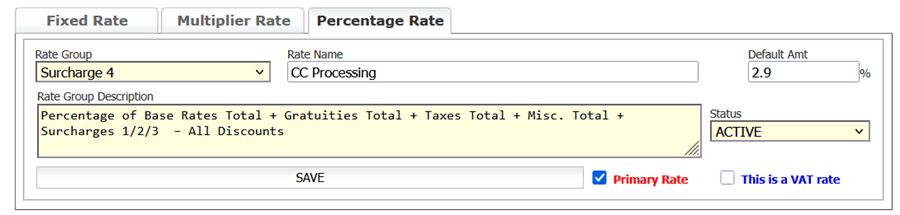
NOTE: "Surcharge 4" is commonly used for this purpose, but you can learn more about Rate Groups at the following link.
Setting Up a Criteria-Based Fee
This option applies the fee only when specific conditions are met, such as certain service types or vehicle types. The fee will automatically apply to reservations created in Limo Anywhere or submitted through ORES.
This is a better fit if you only want to apply credit card fees or similar pass-through costs in specific scenarios.
Before setting this up, make sure you’ve created a rate line item in System Rate Manager. When creating that rate, set the "Default Amt" to 0, then continue with the steps below.
- Click the "My Office" icon in the navigation bar, then select the "Rate Management" tab.
- Click "Miscellaneous Fees" from the left-hand menu.
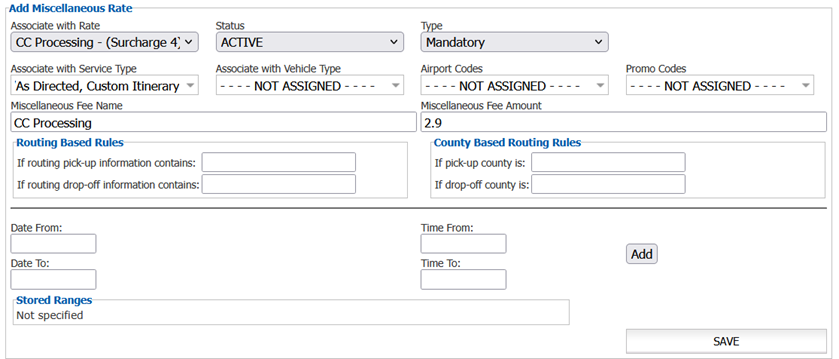
- Select your rate from the "Associate with Rate" dropdown.
- Set "Type" to "Mandatory."
- Choose the applicable Service Type(s).
- Select the applicable Vehicle Type(s).
- (Optional) Select Airport Codes.
NOTE: The fee will only apply if those airports are included in the trip routing. - (Optional) Select Promo Codes.
NOTE: The fee will only apply if those promo codes are used. - Enter a name in the "Miscellaneous Fee Name" field.
- Enter the percentage in the "Miscellaneous Fee Amount" field.
- (Optional) Add any routing-based, county-based, or date/time rules as needed.
- Click "SAVE" to apply your changes.
If you need help setting this up or want to review your current configuration, reach out to Support at (972) 701-8887 (Option 2) or email Support@LimoAnywhere.com.
Recent Posts

Erica Bugbee Joins Limo Anywhere
Thursday October 8, 2026
Limo Anywhere Webinar
Wednesday October 7, 2026