See the day clearly.
Dispatch with more control.
Bring your daily views, trip details, Attention Flags, and map into a dispatch workspace you can make your own. Save the views your team uses most and return to the right work throughout the day.
Your classic grid is still available. Both experiences connect to the same Limo Anywhere operation, so you can get familiar with New Dispatch at your own pace.
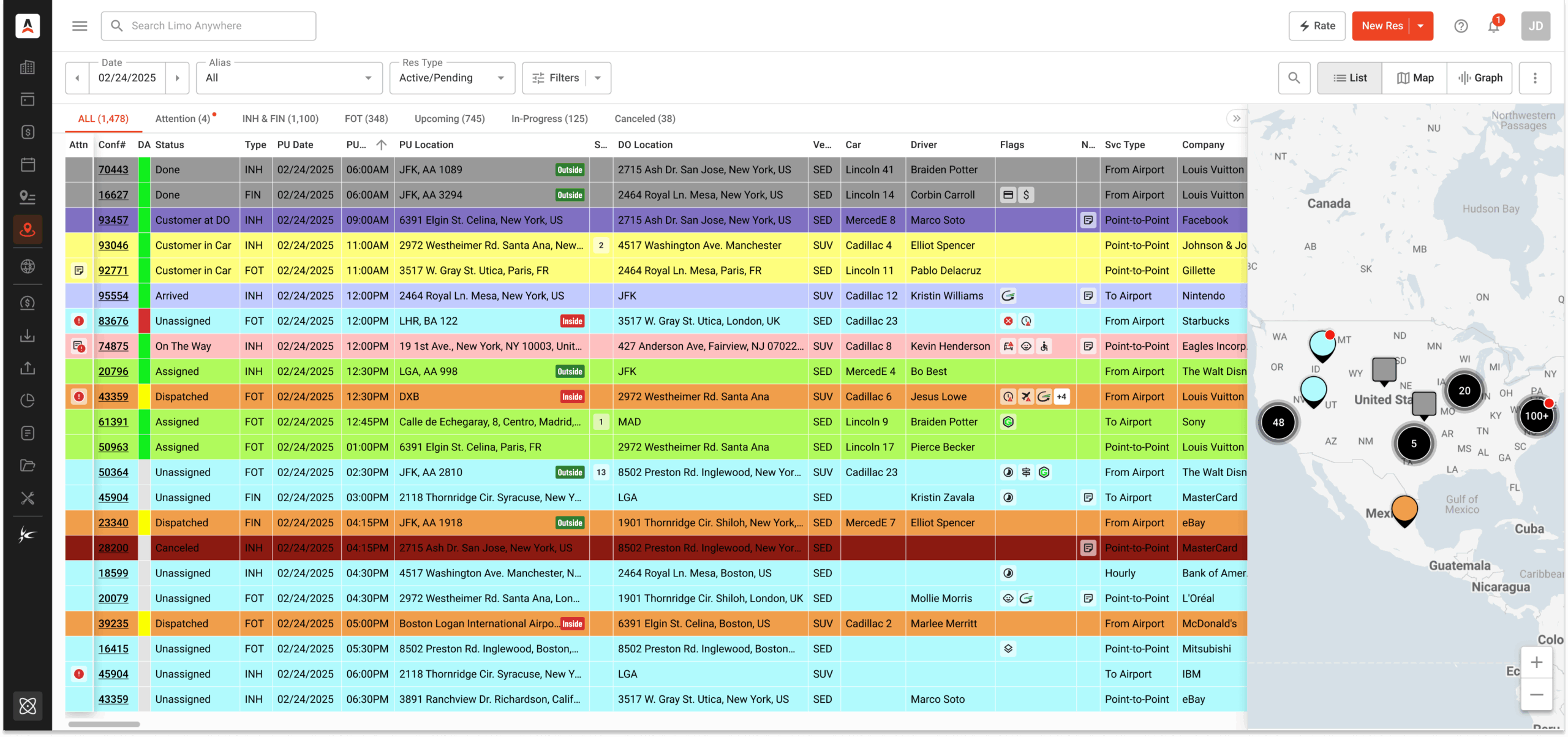
Keep the right work in view.
Organize recurring tasks, bring exceptions forward, and review changes with trip information close at hand.
Save your daily views
Presets and tabs keep recurring work ready to open, from today’s trips to payments due and affiliate reservations.
Bring exceptions forward
Configured Attention Flags highlight missing information and special handling requirements on the dispatch board.
Keep location in context
Review reservations in list and map views, with GPS visibility for on-duty cars moving on the map.
A grid that works the way your team does.
Explore the tools that support daily dispatch. Select a screenshot for a closer look.
Build a view once.
Return to it throughout the day.
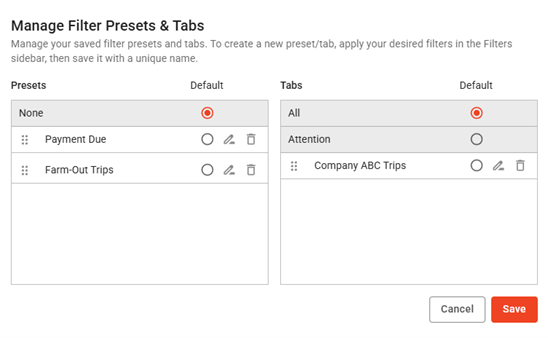
Save column layouts, sorting preferences, and filters as presets. Organize the views you return to regularly with tabs.
- Focus on balances due, affiliate work, key clients, or vehicle assignments.
- Share preset filters with other users on your team.
- Set a default preset or tab for your daily review.
Put the details you use most within reach.
Resize, reorder, pin, hide, sort and filter your working columns. Save your preferred layout as the default, so the grid opens with the information you need.
Give dispatch, reservations, billing and management a view that fits their responsibilities. The Attention column stays fixed.
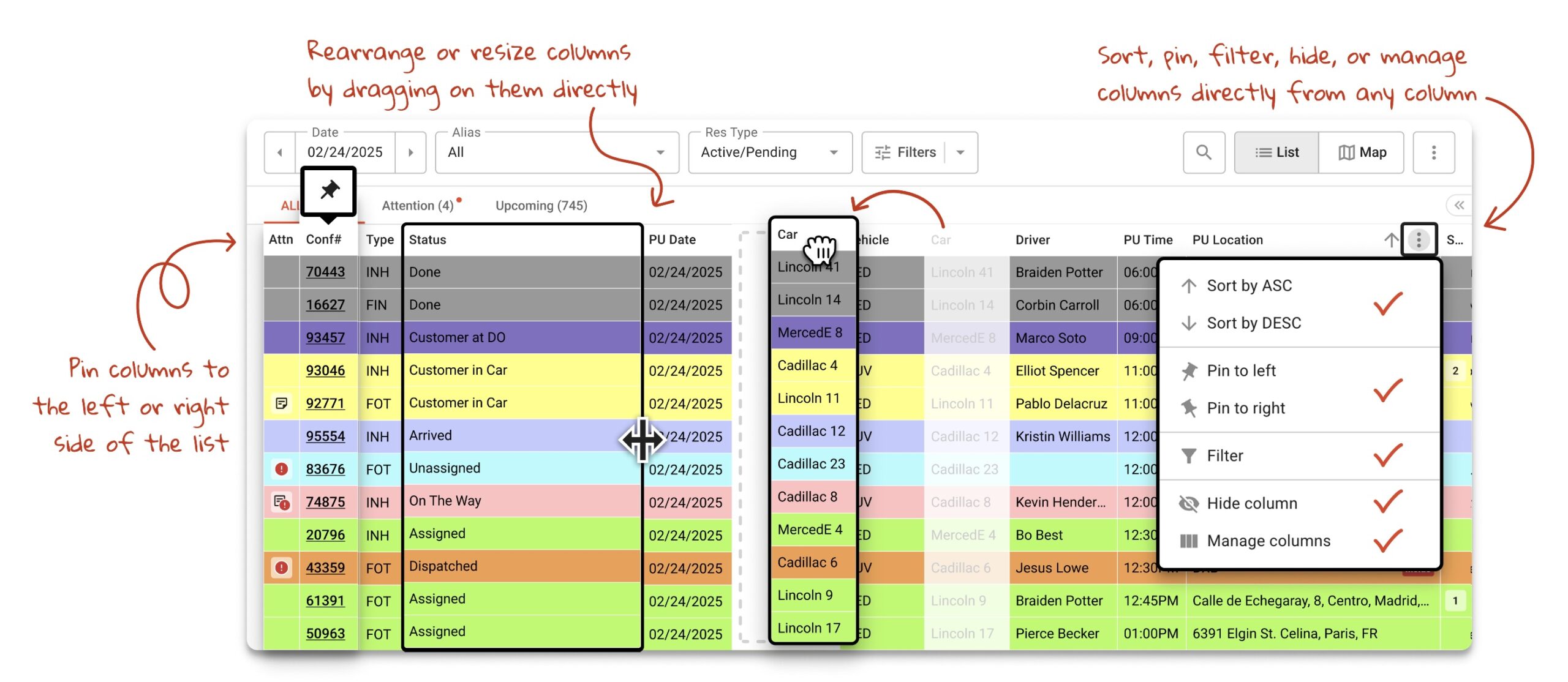
Watch the column controls walkthrough 16 seconds
Illustrated walkthrough
The callouts highlight pinning, resizing, reordering and the column menu. The Attention column stays fixed.
This illustration uses an earlier example view. Follow the linked documentation for current instructions.
Keep the trip and its location in view.
Switch between List and Map to review matching reservations and their pickup locations. Select a trip to bring its information into the sidebar.
Review account details, routing, assignments and flags without losing the board. Use the Edit panel for full changes; double-click a trip row to open it.
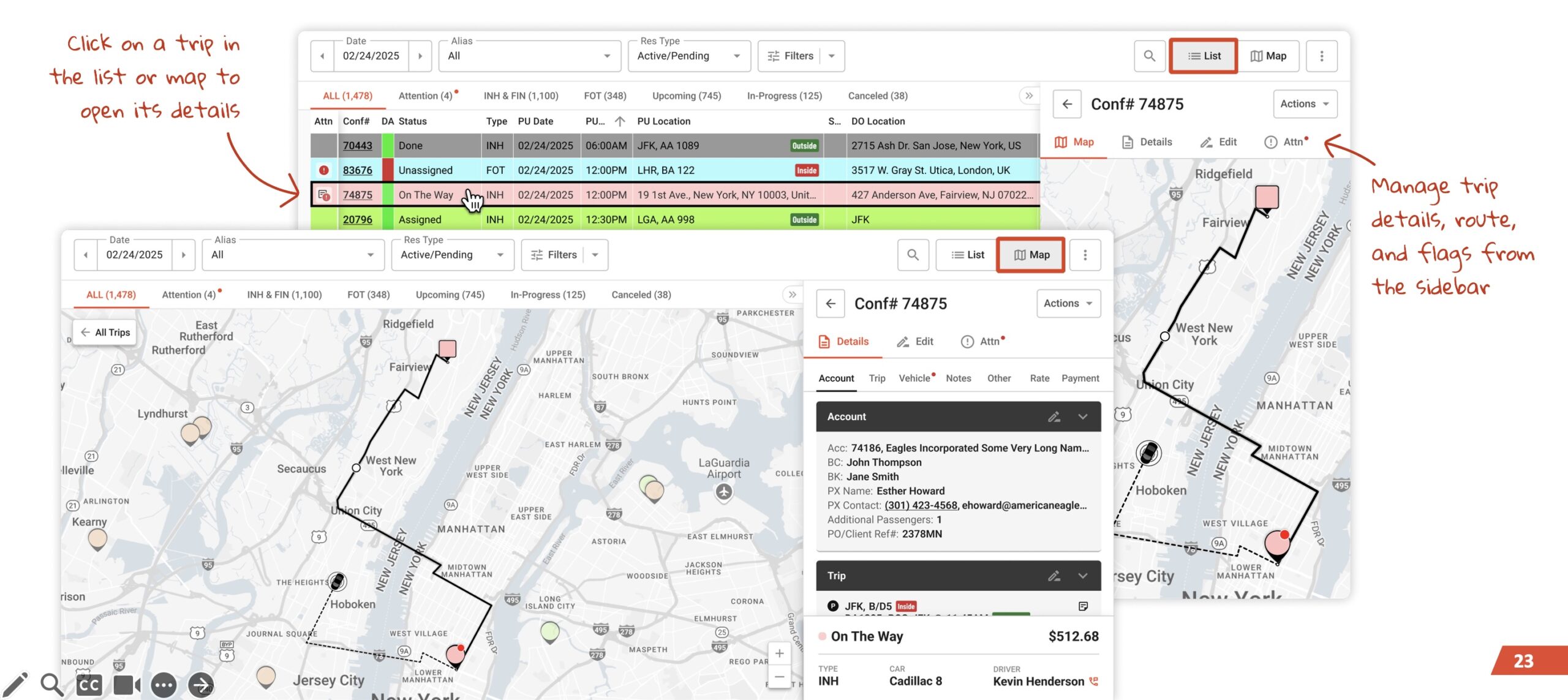
Add vehicle movement to the picture.
New Dispatch supports GPS and displays on-duty cars moving on the map in real time. Select a displayed vehicle for more information, with trip and map memos close at hand.
See vehicle map improvements →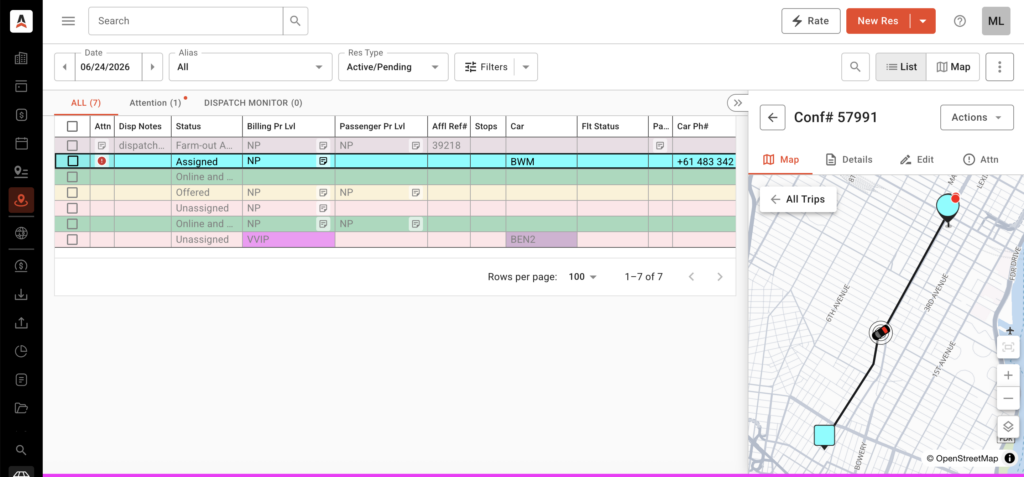
Find exceptions.
Update the right trips.
Use flags to focus your review and Batch Edit when the same change applies to a selected group of reservations.
Make one change across multiple trips.
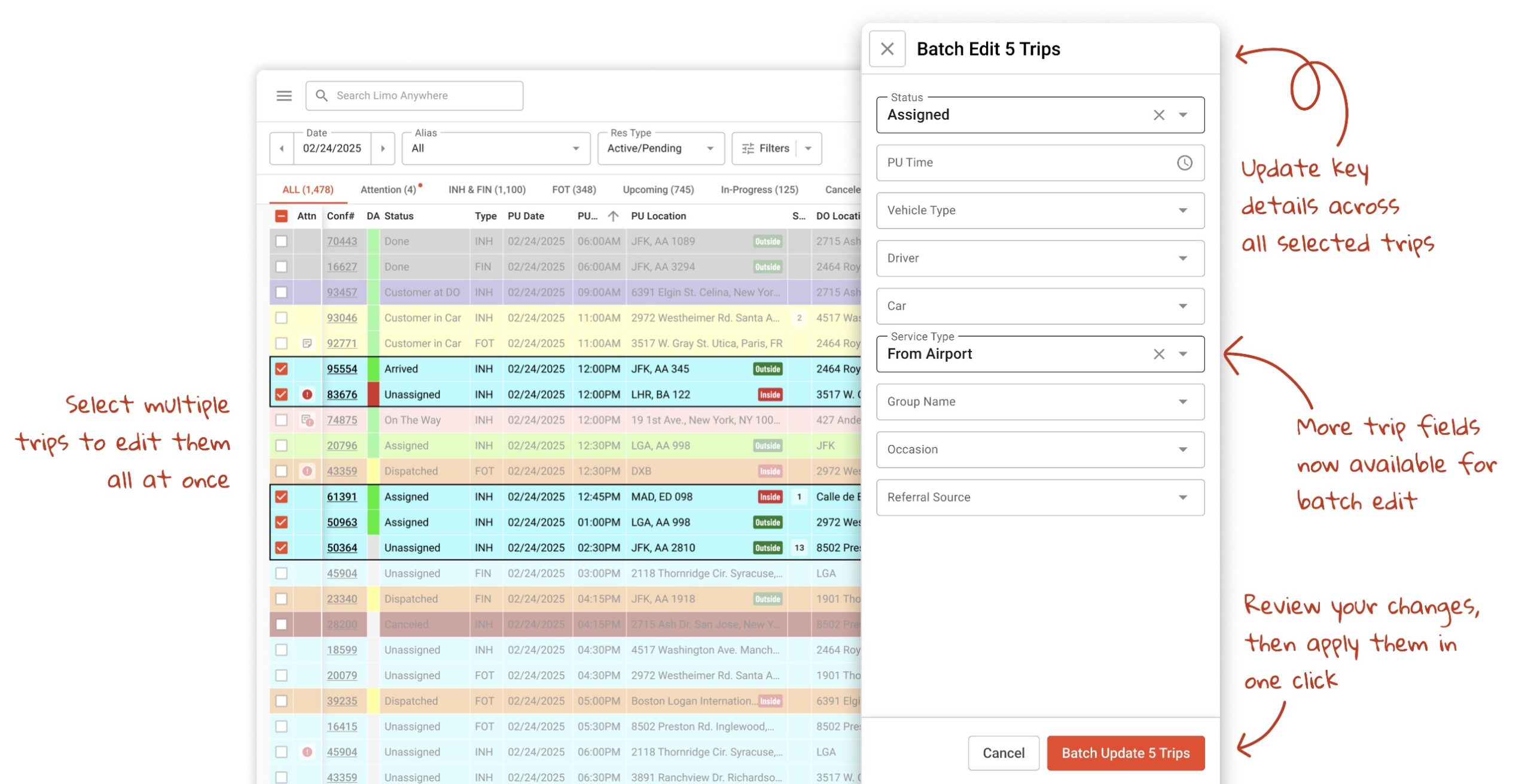
When the same update applies to several reservations, select the relevant trips with their checkboxes and open Batch Edit.
Supported fields include status, pickup time, vehicle type, driver, car, service type, group name, occasion and referral source. Review your selections before applying changes.
Watch the batch edit walkthrough 16 seconds
Illustrated walkthrough
Use checkboxes to select the reservations, review the supported fields, then apply the changes to the selected trips.
This illustration uses an earlier example view. Follow the linked documentation for current instructions.
Bring flagged trips into focus.
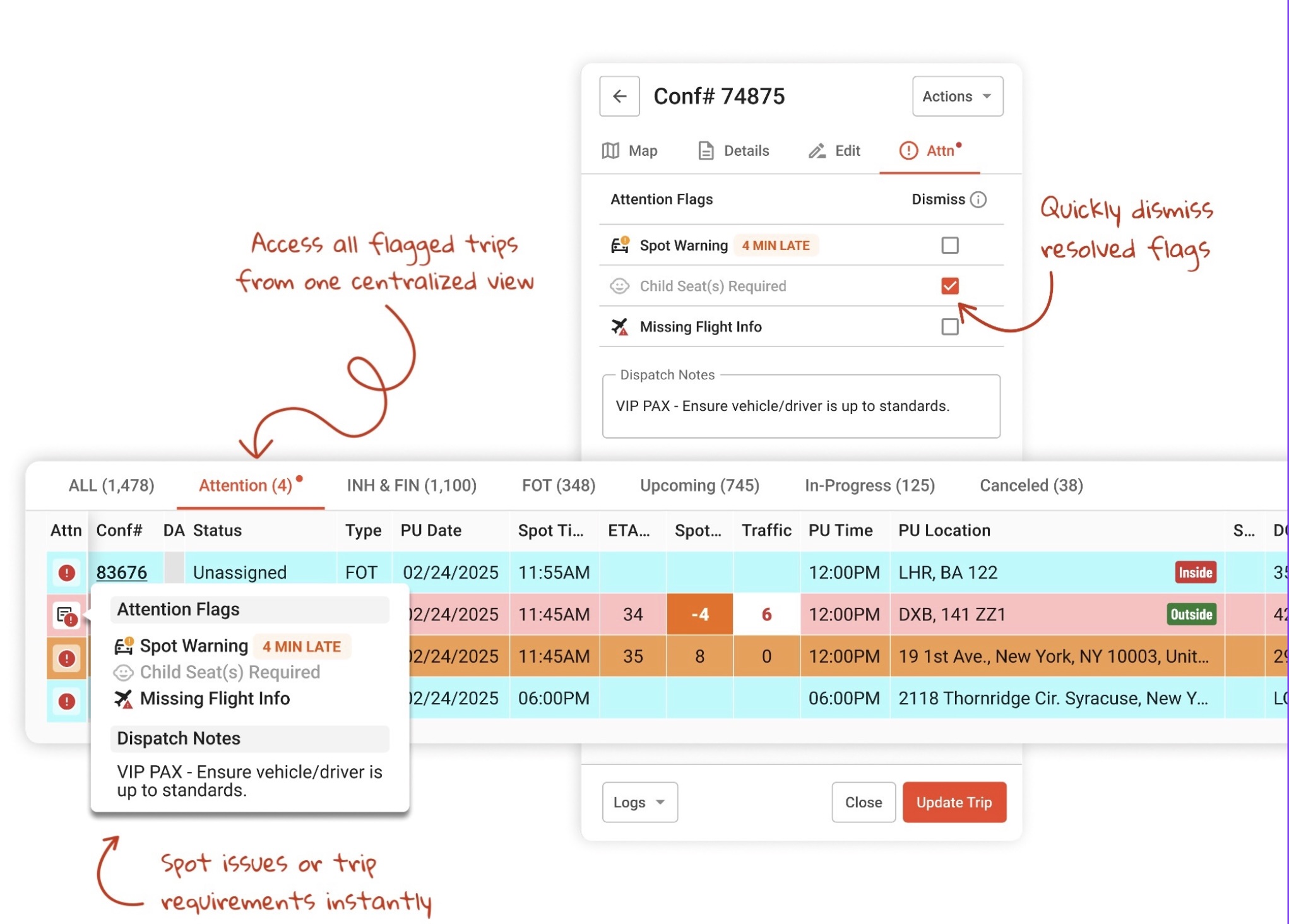
Choose the conditions your team needs to review, such as missing or unverified flight information, Meet & Greet, or child-seat requirements.
Configured Attention Flags highlight those trips on the board. Open the Attention panel to review their flags and reasons.
The ETA, SPOT Time ETA, Traffic and Spot Warning shown in this example are LA Black monitoring features. View LA Black feature details
Trip updates and attention flag dismissals save independently in the current grid. Read the latest save instructions
Quick Edit safeguards
When assigning a driver with a scheduling conflict, Quick Edit warns you before saving. It saves changed fields only, helping prevent accidental overwrites when multiple dispatchers work on the same trip.
Review Quick Edit improvements →Search and account context
Global Search, Billing Account Priority, vehicle codes and nicknames, and options for up to 500 rows per page support daily review.
See search and grid improvements →Common actions nearby
New Dispatch includes New Res, New Quote, New Rate, and Link Drivers & Cars. The New Res button can be hidden in individual user settings.
View Link Drivers & Cars details →Narrow the visible grid as you type.
Looking for a reservation in your current view? See how a few letters bring matching trips into focus.
Explore the Dispatch Grid guideScreen recording · 8 seconds
In this example, typing JFK into the grid search narrows the displayed reservations. This is the grid search, separate from Global Search.
Recorded in an earlier product view. The current interface may differ.
Try the new grid.
Keep the access you know.
Make New Dispatch part of your next shift. When you want the classic experience for a particular task, it remains available at manage.mylimobiz.com.
The newer and classic experiences connect to the same operation. Explore the newer workspace while keeping your familiar access.
Read about the two experiences →On first login, your column sort order and dispatch settings associated with your system user copy over from classic Dispatch.
See which settings carry over →Try one saved view during your next shift, then build on it as the team becomes comfortable.
Five views worth saving.
Choose one recurring task and build a view around it. Add others as your team finds what works best.
Today’s Trips
Keep the day’s reservations together for review throughout the shift.
Payments Due
Focus on trips with balances that need follow-up.
Farm-Out Trips
Review affiliate work and the details needed to coordinate service.
Key Clients
Keep reservations for important accounts easy to find.
Vehicle-Specific
Review work for a selected vehicle or vehicle type.
See an airport filter example
Focus your review on a location.
Combine pickup and drop-off filters to identify trips involving an airport such as JFK. Save the filtered view when it is useful for recurring work.
This example shows how location criteria can help organize your dispatch review.
Learn how to build saved views →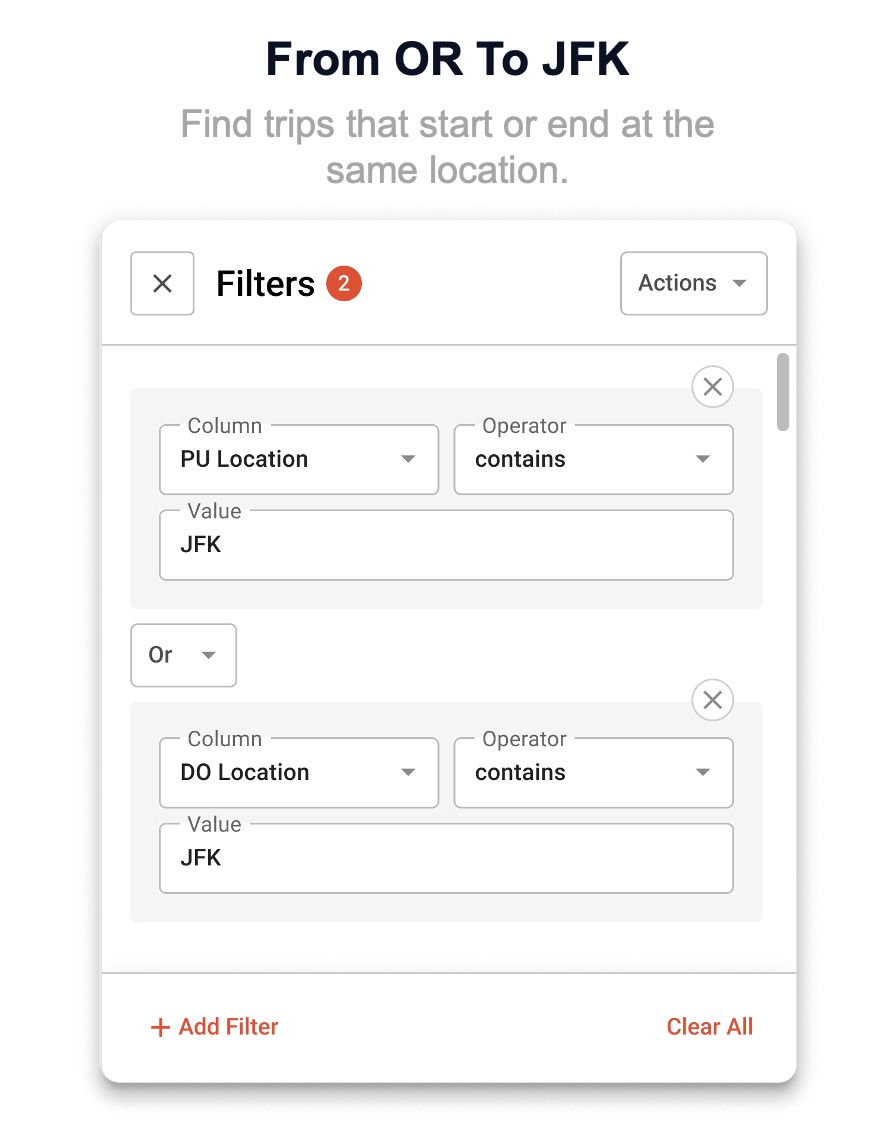
Open it. Take the tour.
Save one useful view.
Sign in and look around.
Open New Dispatch with your Limo Anywhere account. Review the settings that carried over and the columns you want to use.
Take the guided introduction.
The six-step tour appears on first login. Reopen it from the upper-right three-dot menu whenever you need a refresher.
Put one daily workflow to work.
Apply your filters, save a preset or tab, and use it during the next shift. Add flags and explore the map as you build familiarity.

The next step is easy to find.
Use these guides when you are ready to configure the workspace or explore a specific workflow.
Set up your grid
Choose your columns, adjust the layout, and save your working view.
Read the setup guide →Build your workflows
Create saved views for billing, affiliates, key clients, and more.
See workflow examples →Explore the support guide
Review instructions for views, editing, Attention Flags, filters, and Batch Edit.
Open the support guide →Need help with access or setup? Email Support or call 972-701-8887. Follow new improvements in the release notes.
Your questions, answered.
Can I still use the classic Dispatch Grid?
Yes. The classic Limo Anywhere experience remains available at manage.mylimobiz.com. You can explore New Dispatch and return to the classic experience when you need it.
Do I need to recreate my reservations?
Both experiences connect to the same Limo Anywhere operation. New Dispatch gives you a newer workspace for managing that operation. Read about the newer and classic experiences.
Will my dispatch settings carry over?
On your first New Dispatch login, the system copies your column sort order and dispatch settings associated with your system user from classic Dispatch. Review your layout and save any adjustments you want to make. See the settings transfer details.
What can I edit from the grid?
Double-click a trip row to open the Edit panel. Clicking the driver or car in Trip Details opens Quick Edit, including when an assignment is blank. Use the Edit panel for broader changes. Review the editing guide.
What should my team try first?
Start with a view you already check every day, such as Today’s Trips, Payments Due, or Farm-Out Trips. Save it as a preset or tab, then add other views as needed. Follow the workflow guide.
What if I need help accessing New Dispatch?
Sign in at app.mylimobiz.com/dispatch?type=list. If you cannot access the page or need help with your account, contact support@limoanywhere.com or 972-701-8887.
Put one useful view to work.
Open New Dispatch during your next shift and start with a view your team already needs. Your classic Limo Anywhere access remains available.
Updated September 30, 2026 · Images illustrate example configurations; current instructions are linked alongside each feature.