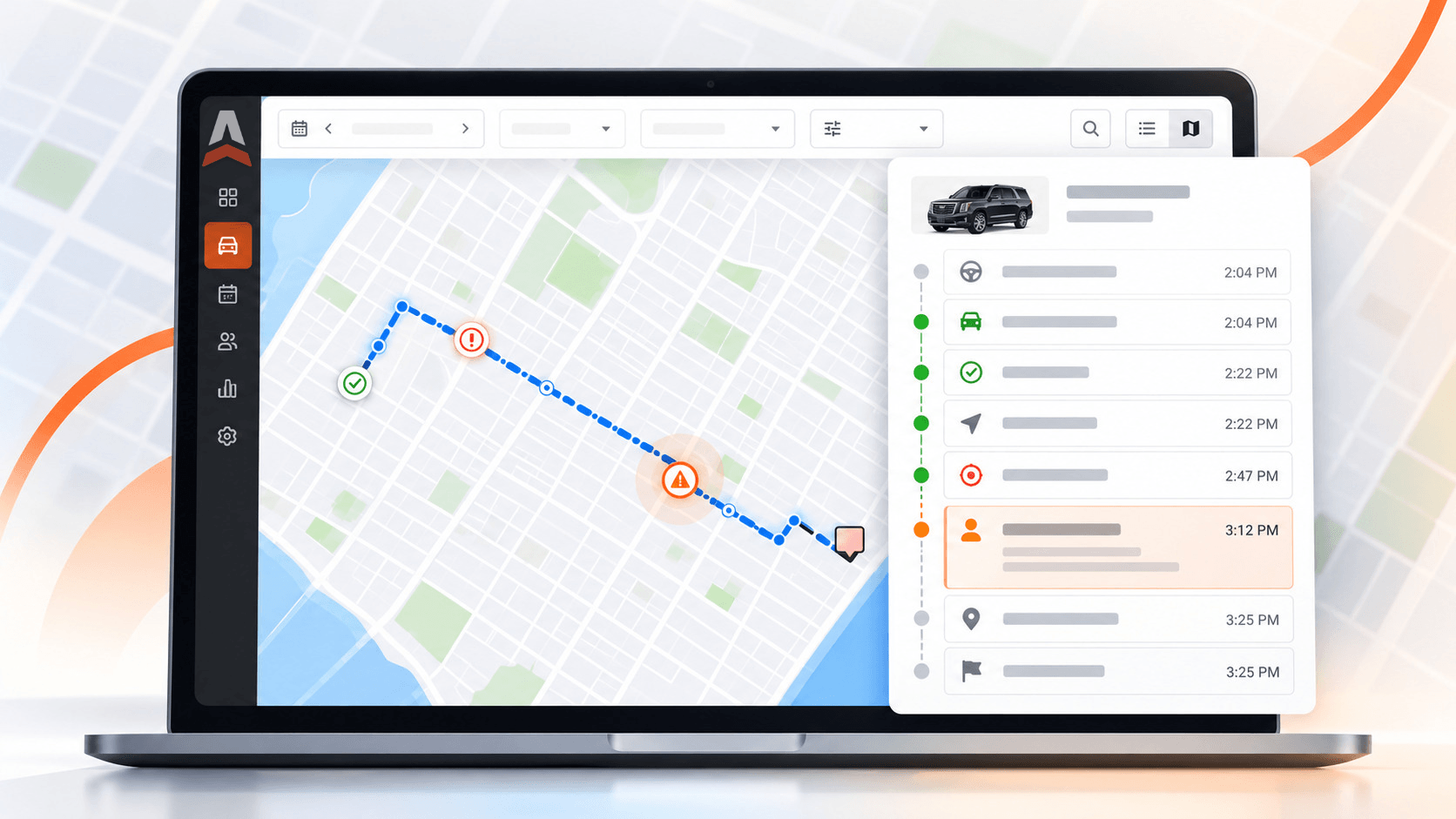
See the plan and the trip record together.
Trip Timeline brings recorded trip statuses, times and available GPS locations together on the LA 2.0 Dispatch map.
Already on Black? See how to open it
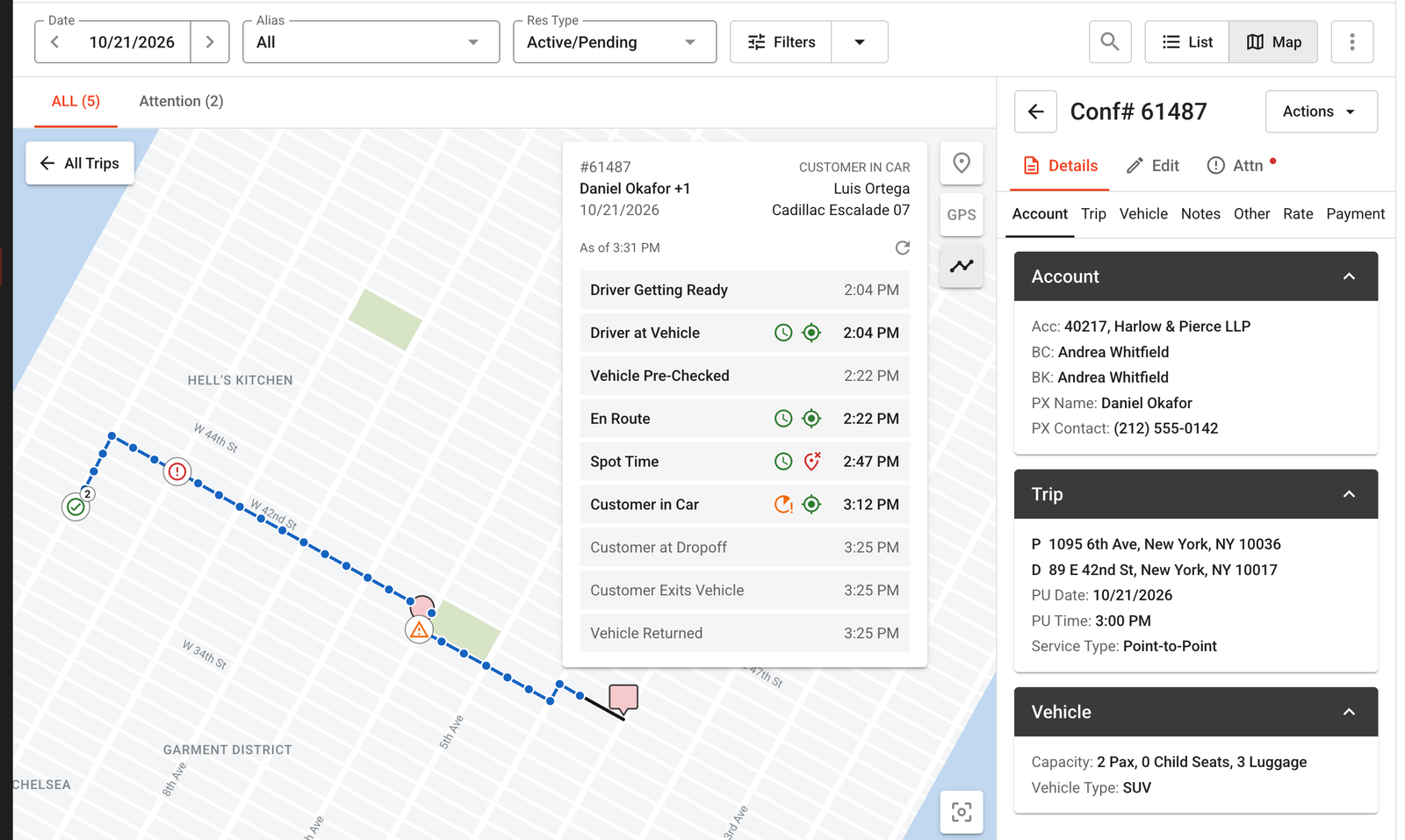
Time and location are checked separately. Here, the arrival status was recorded away from pickup.
Screenshots are design-prototype examples with fictional demonstration data; the production interface may differ slightly. Numbered markers and outlines are article annotations, not product controls.
The status says Arrived. Was the vehicle at pickup?
A green time result does not necessarily mean the vehicle was at pickup. In this example, Arrived (Spot Time) was recorded 2 minutes after the planned spot time, inside the company’s limit, but 0.7 mi from the pickup.
Read the two results together, then check the GPS trail when something needs a closer look.
Example from the screenshot. Your company sets the time and distance thresholds.
Two checks for each recorded step
The clock icon compares the recorded time with the planned time. The target icon compares the recorded location with the expected place. Each result uses your company’s configured limits.
Select a step. See the details behind it.
Select a timeline step to see its scheduled time, recorded time and distance from the expected location. The matching map marker connects the event to where it was recorded.
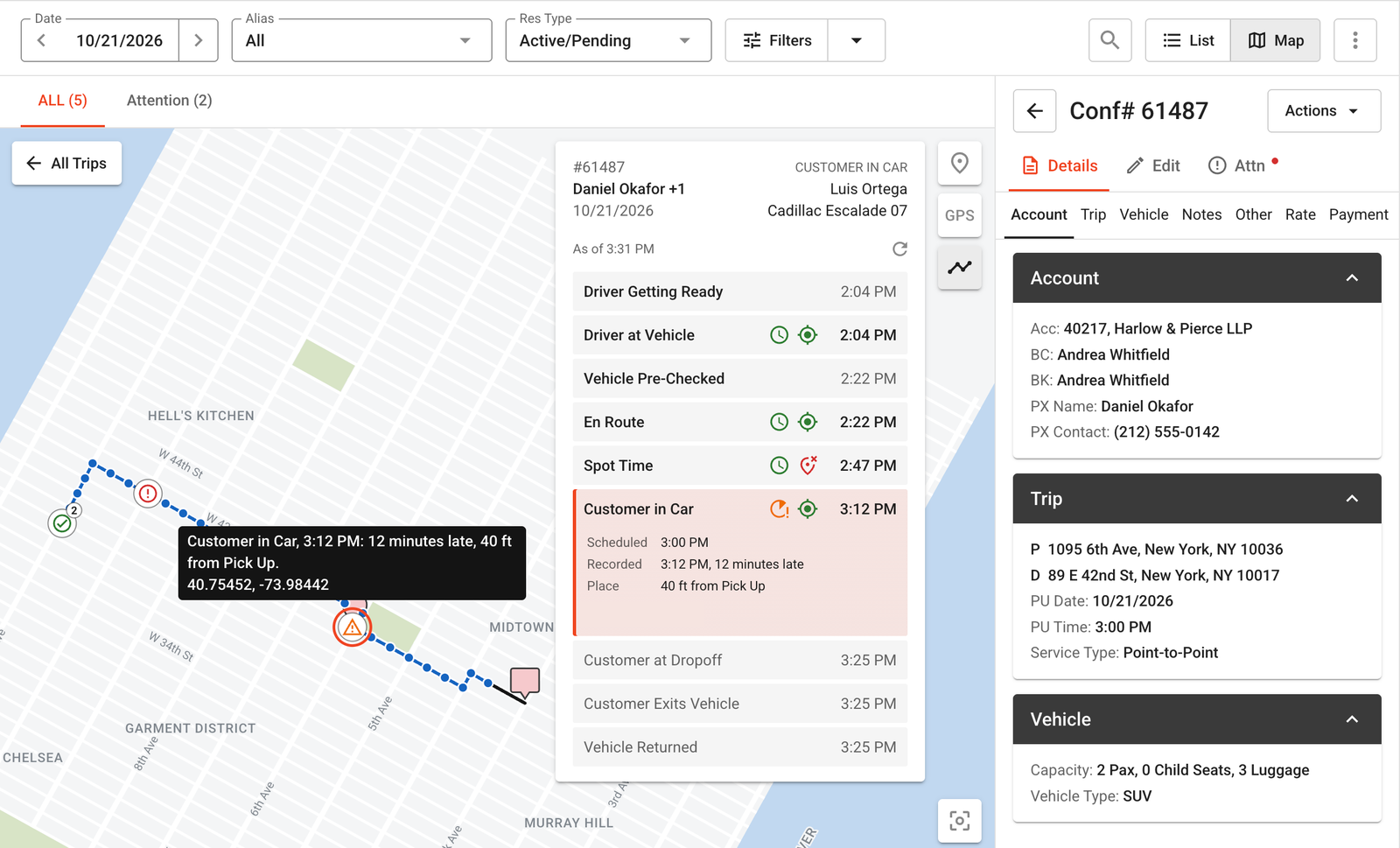
Detail of the selected Customer in Car step. Select Enlarge to see the full map.
Review the record behind a no-show.
When a customer questions an arrival, wait time or no-show fee, Trip Timeline brings the recorded steps and available GPS trail into the same view.
The arrival record, GPS trail and no-show timestamp help your team review what happened and explain its decision.
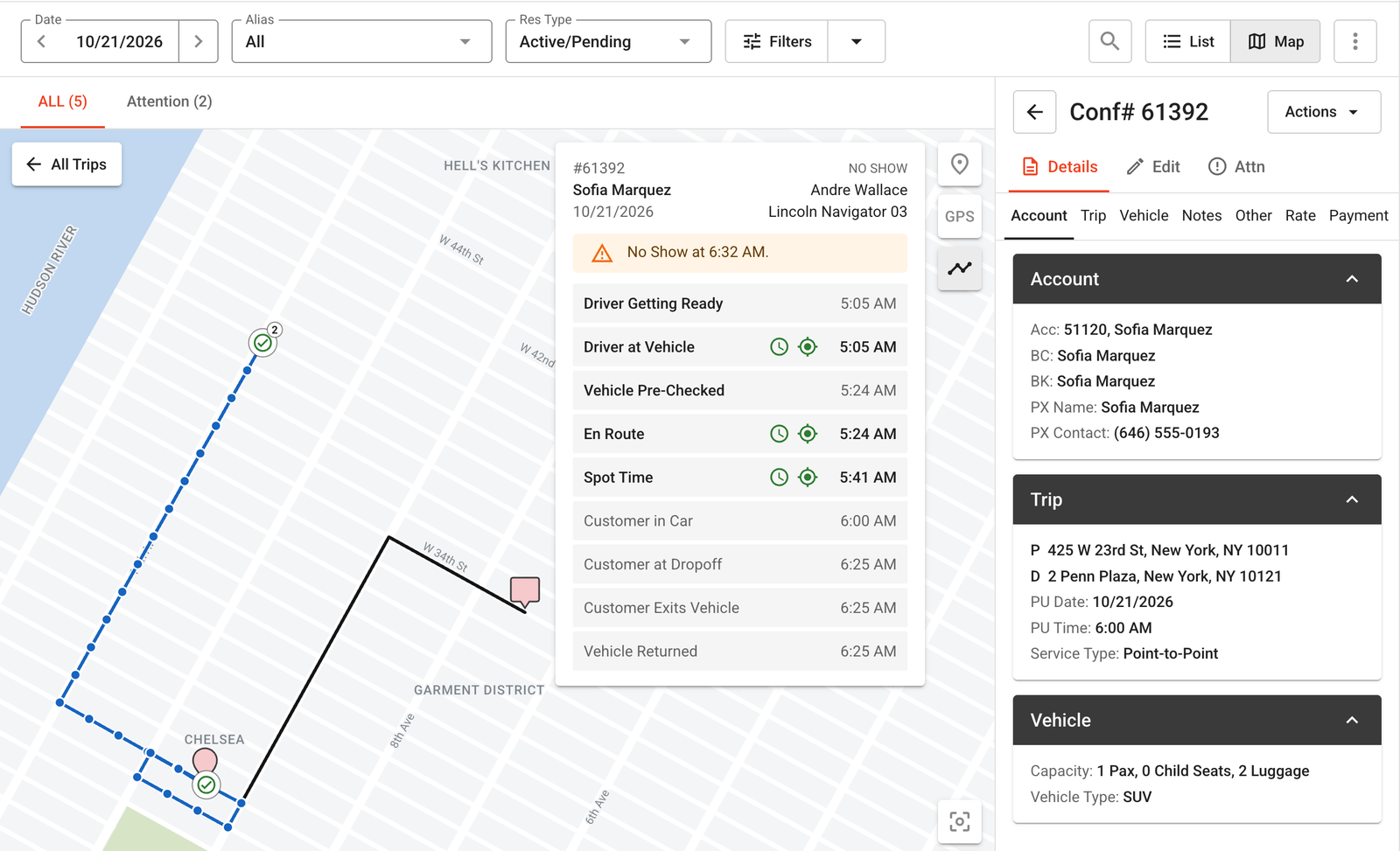
Arrival at 5:41 AM is recorded before the 6:32 AM no-show. The GPS trail adds location context.
The same review can support late-cancellation questions, comparisons between arrival and passenger-boarding times, and driver coaching. It can also show when a driver was on time and in the right place.
Trip Timeline provides evidence for a review; it does not guarantee a dispute outcome or establish why a delay occurred.
Review the plan before the first status update.
For an upcoming trip, Trip Timeline shows the planned times for each configured step. Dispatch can review when the driver should get ready, reach the vehicle, leave and arrive.
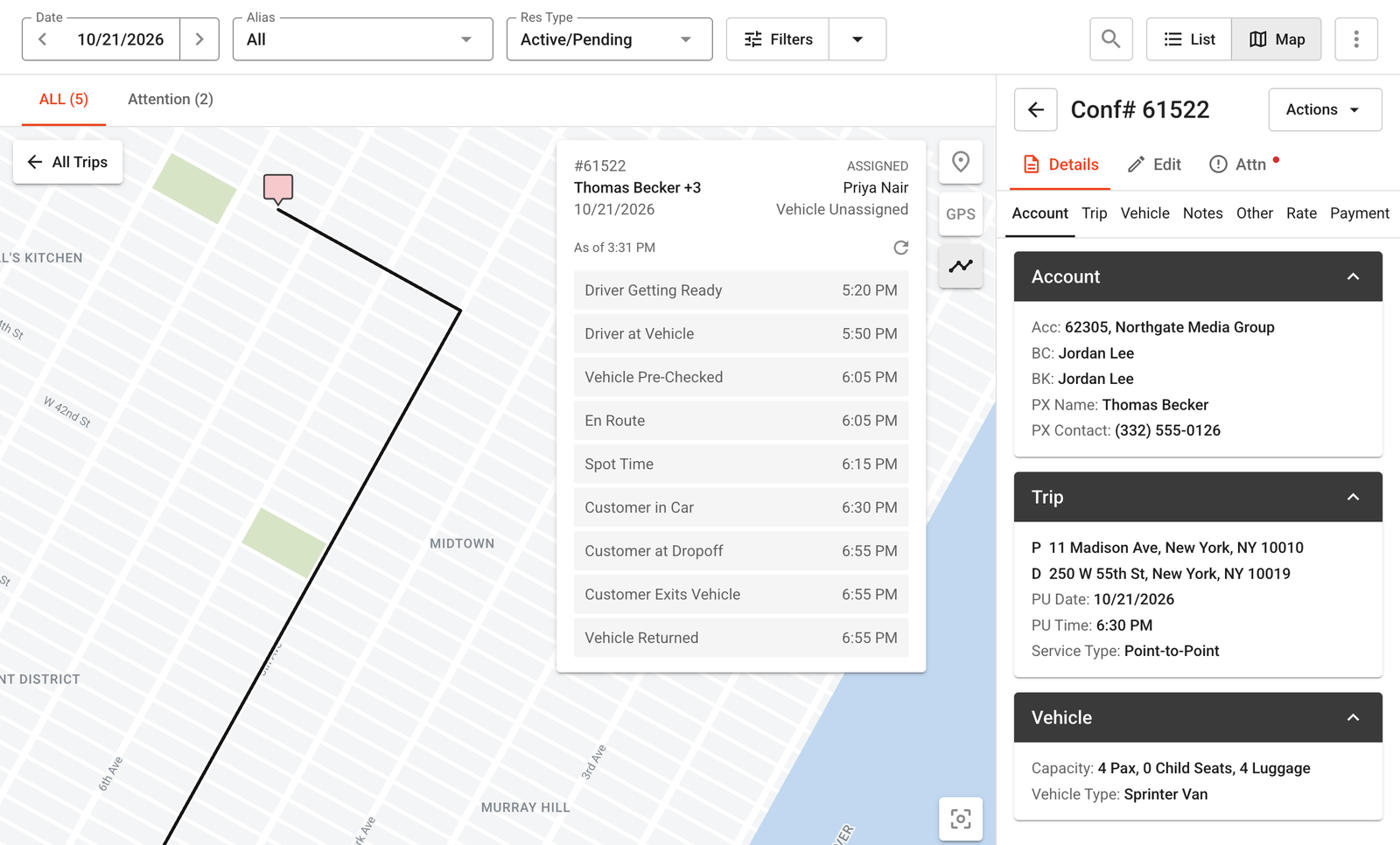
Gray rows show planned times. “Vehicle Unassigned” identifies an assignment that still needs attention.
Open a trip. Show its timeline.
- Go to Dispatch, open the Dispatch Grid and switch to Map view.
- Open one trip from its map pin or the trip list.
- Click the timeline icon beneath Map Pins and GPS. Its tooltip reads Show Trip Timeline.
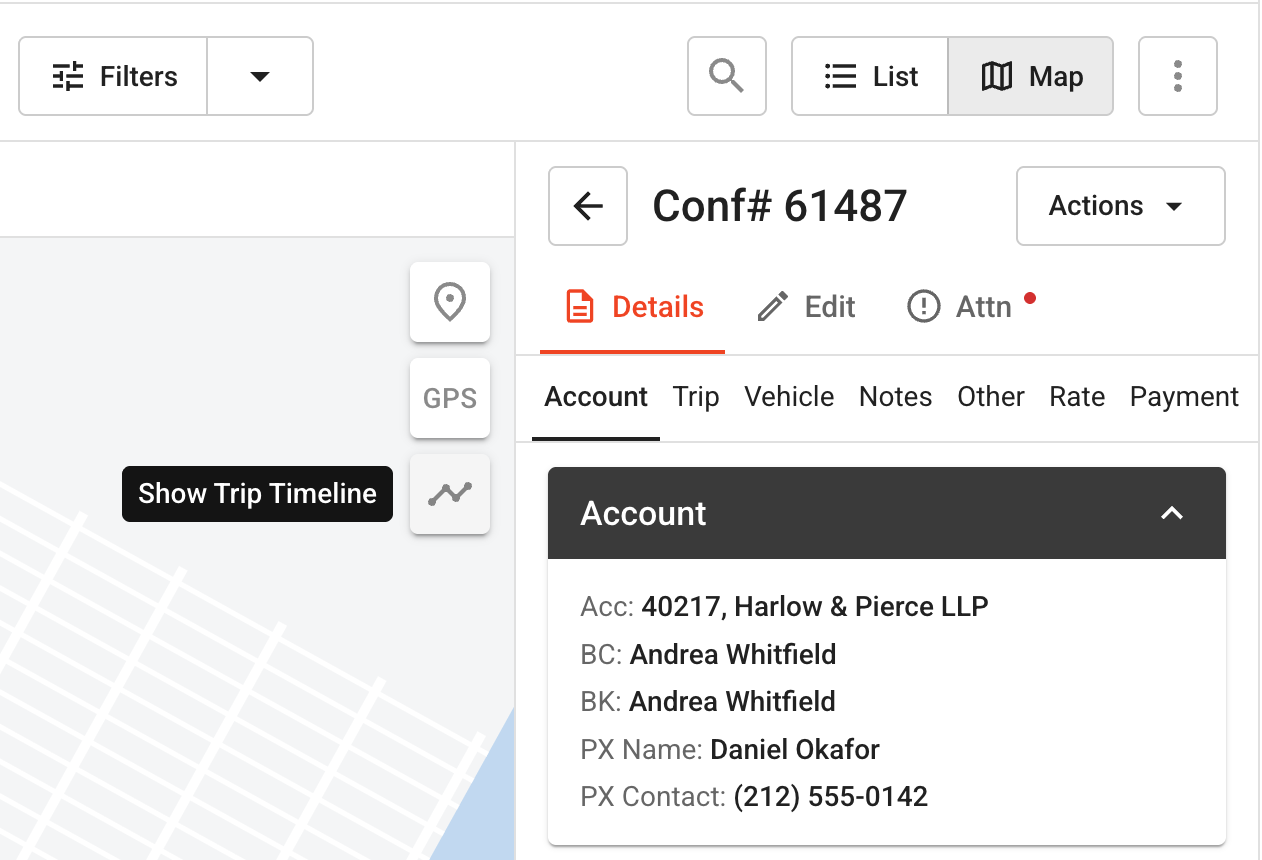
The button appears when one trip is open, not in the All Trips view.
Set the checkpoints that fit your operation.
In Advanced Dispatch Mapping settings, choose the steps to display, the trip status that marks each step, and your time and distance thresholds.
Trip Timeline uses recorded trip statuses and GPS data received from a supported GPS vendor or the driver app. Once opened, it stays on as you move to another trip. Explore the Dispatch Grid.
Trip Timeline questions, answered.
Which plan includes it?
Trip Timeline is included in the Black plan as part of Advanced Dispatch Mapping.
Using Core or Plus? Book a demo of Black to see Trip Timeline in action and explore how advanced dispatch tools can help your team manage trips with greater visibility and control.
Does Trip Timeline update automatically?
No. It shows a snapshot. For an in-progress or upcoming trip, check the As of time and use refresh to load the latest available data.
Can I review past trips and farmed-out trips?
You can review any trip you can open on the Dispatch map. For a farmed-out trip, updated status times can still appear without affiliate GPS. When no GPS trail is available, the card displays a notice.
Why are some steps gray or missing a location result?
A gray step may be planned but not yet reached, or it may have been skipped and filled in using the next status’s time. Skipped steps receive no time or location result. When the recorded location or the expected location cannot be determined, no location result is shown.
Can I use Trip Timeline on mobile?
Trip Timeline is available on the desktop Dispatch map. It is not currently available in the mobile view.
This image could not be loaded. Use Open original below to view the screenshot.