LA 2.0 System Notifications: A Clearer View of What Needs Your Attention
Product update · LA 2.0
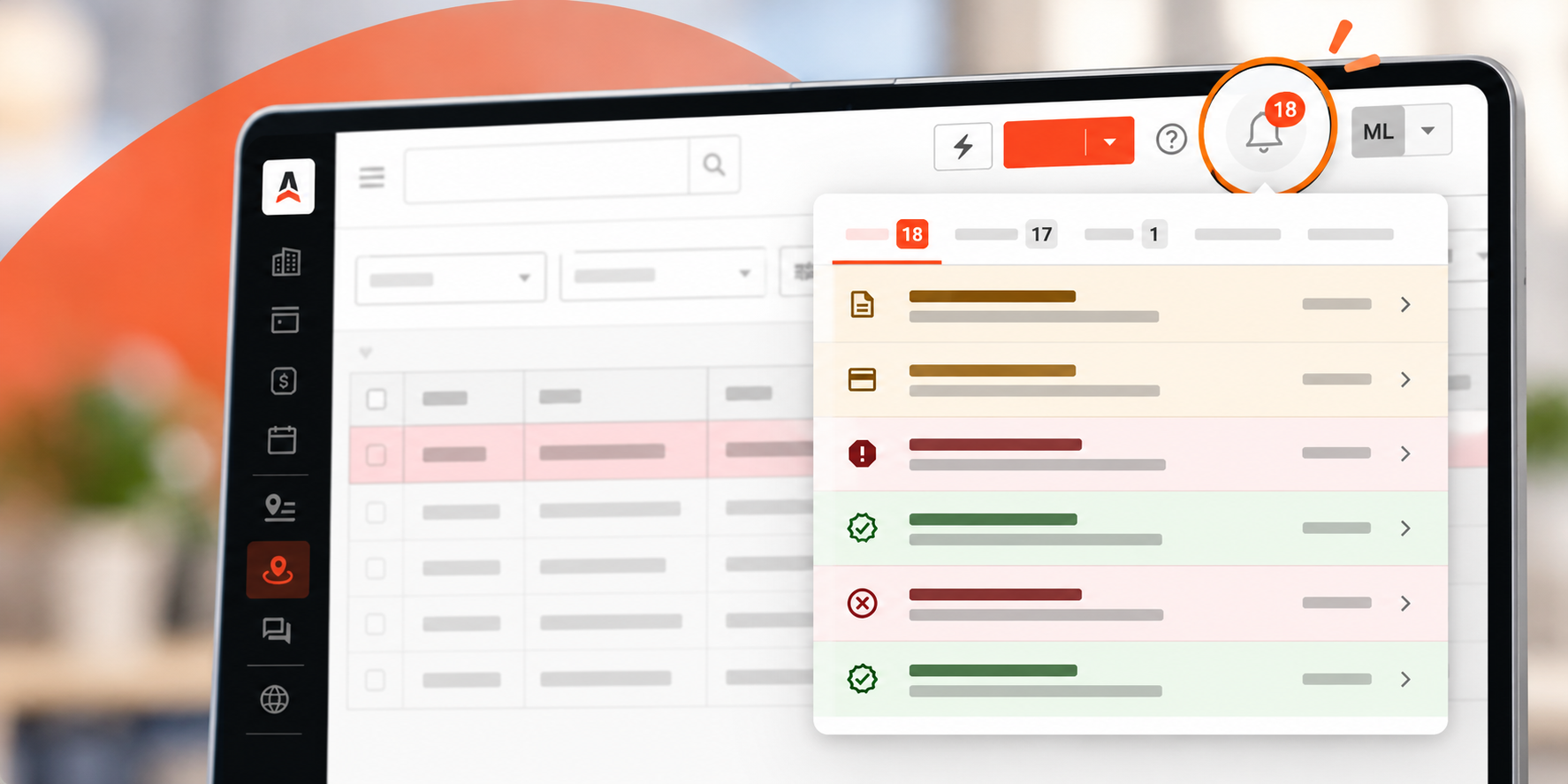
See reservation alerts, trip-settlement reminders, affiliate responses, and inbound messages in real time.
Your team is reviewing new reservations, coordinating affiliate coverage, and keeping completed trips moving toward settlement. Having a consistent place to check for updates can make it easier to decide what needs attention next.
LA 2.0 System Notifications are now live for all users on app.mylimobiz.com at no additional cost. The notification bell is enabled automatically, and your existing alert settings carry over.
Open the bell in the upper-right header to review notifications and see the unread count. Notifications update in real time, without refreshing the page.
What is changing?
This update brings existing system alerts into a new header notification panel. For operators using Messaging Manager, the panel also surfaces inbound messages. It gives these familiar workflows a consistent place to review updates and access the available follow-up links.
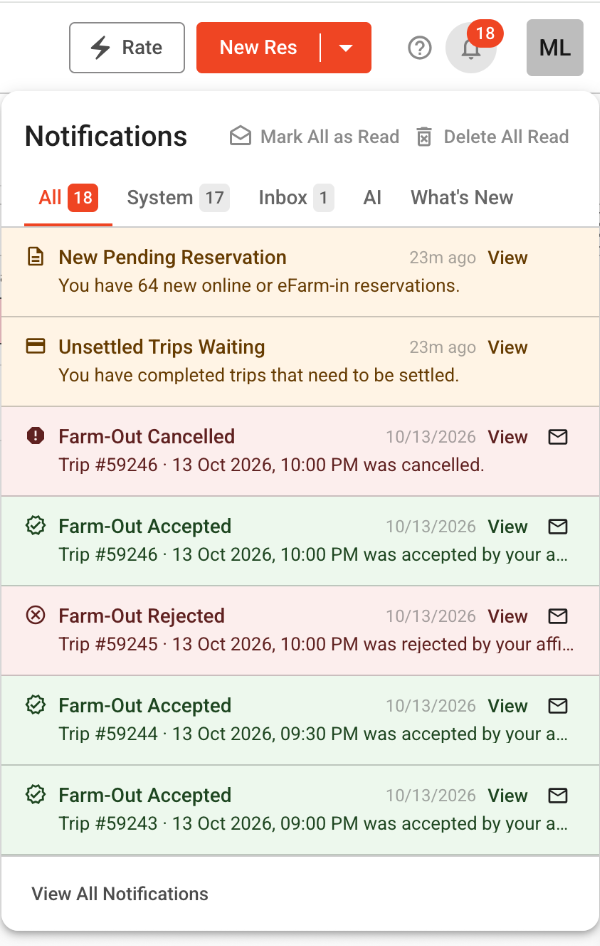
Select a screenshot to view it at full size.
Use these sections to organize your review:
| Section | What it contains |
|---|---|
| All | All notifications together in one place. |
| System | Existing system notifications, previously shown in the red banner in the older interface. |
| Inbox | For operators using Messaging Manager: inbound messages. Selecting View opens Messaging Manager. |
Where this helps in your day-to-day operation
Here are practical examples of how your team could build these notifications into its existing routines.
Keep completed trips moving toward settlement
When the corresponding setting is enabled, the unread Unsettled Trips Waiting notification is highlighted yellow. Selecting View takes you to the Ready to Settle page.
Example workflow: During the morning office review, your billing or operations team checks for completed trips that still need attention, opens Ready to Settle from the notification, and works through the appropriate settlement steps.
The reminder and its View link can help your team build settlement review into a consistent routine.
Bring pending online and eFarm-in reservations into view
With the relevant setting enabled, an unread New Pending Reservation notification is highlighted yellow. Its View link opens the Online and eFarm-in page.
Example workflow: A reservationist finishes helping a caller, checks the notification panel, and opens the pending-reservation page to review incoming requests.
A consistent place to check for pending reservations can help your team focus its review and follow-up.

See whether an affiliate has accepted or rejected a farm-out
For LANET trips, the panel distinguishes between Farm-Out Accepted, highlighted in green, and Farm-Out Rejected, highlighted in red. These alerts depend on the applicable settings being enabled. Marking a notification as read removes its highlight.
Example workflow: Your dispatcher is coordinating an airport transfer through an affiliate. An accepted notification confirms the affiliate’s response. A rejected notification signals that your team needs to review coverage and take the next step.
Accepted

Rejected

Keeping these responses visible can support timely follow-up when your team is coordinating several trips. Farm-out acceptance confirms the affiliate’s response, not completion of the trip.
Notice inbound messages while handling other work
For operators using Messaging Manager, the Inbox section surfaces inbound messages. Selecting View opens Messaging Manager, where your team can continue its normal messaging workflow.
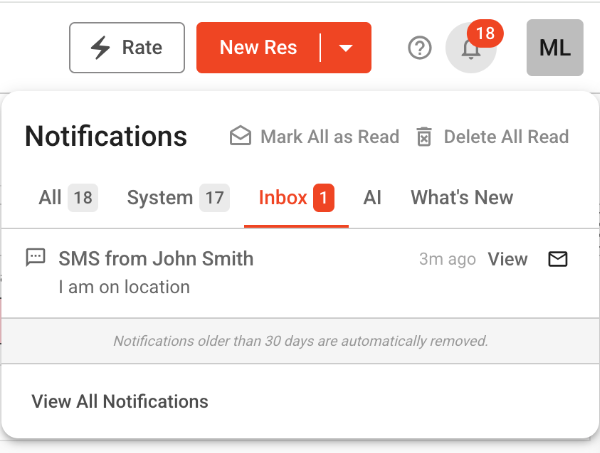
Example workflow: While reviewing reservations, an office team member checks the notification panel, notices an inbound message, and opens Messaging Manager to review it.
This brings message review into the same routine as checking system alerts. Your team still uses Messaging Manager for the messaging workflow.
Who should pay particular attention?
Owners who handle reservations and back-office work themselves; dispatchers coordinating LANET farm-outs; reservation teams managing online and eFarm-in requests; and staff responsible for trip settlement or Messaging Manager conversations.
Start with the notifications that match the work you already do, rather than adding a separate process for every alert.
Where to look for value in your operation
The potential return is in less time spent checking for updates and more consistent follow-through. The value will depend on which alerts your team uses, your trip volume, and how notifications fit into your existing process.
Measure your own workflow
Compare similar periods before and after your team adopts the panel. Record time spent checking for the covered updates, how promptly pending reservations and rejected farm-outs receive attention, and how long completed trips wait for settlement review.
Use your own records or a simple manual log. These are suggested evaluation measures, not reporting features introduced with this release.
There is no additional charge for the notification feature. Its practical value is the time your team may recover and the consistency it can bring to follow-up. Results will depend on your operation; there is no fixed savings amount or guaranteed financial return.
Keep the notification list useful
Clicking View does not automatically mark a notification as read. You can mark notifications as read individually or select Mark All as Read to mark all unread notifications as read. Marking notifications as read updates the unread badge count. Highlighted system notifications also lose their background highlight.
Before: four unread notifications
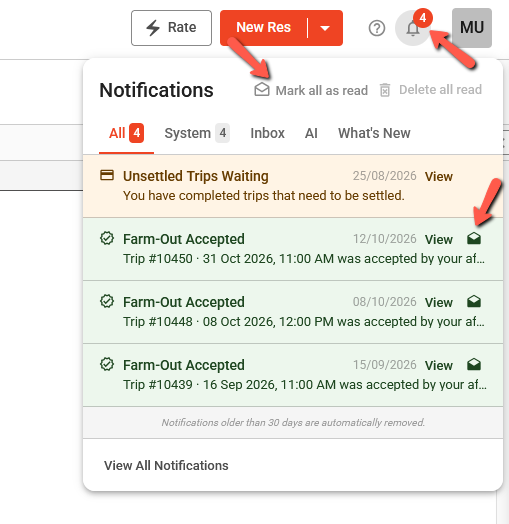
After: one notification marked as read
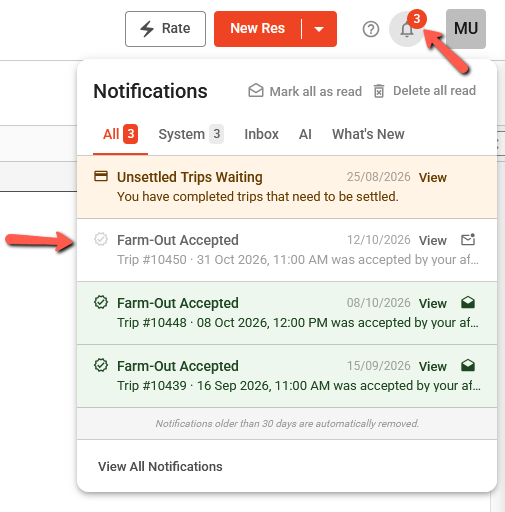
Marking a notification as read does not delete it. Select Delete All Read to remove read notifications. That action does not delete unread notifications.
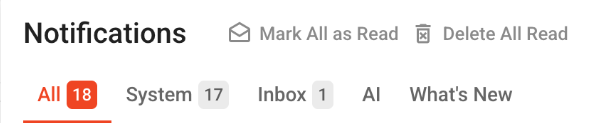
A 30-day notification history
All notifications older than 30 days are automatically removed, including unread notifications. Use the panel for day-to-day awareness rather than as a permanent notification archive.
Keep the distinction clear: A notification’s read status is not a task-completion checklist. Continue using your normal process to follow up on reservations, affiliate responses, messages, and settlement work.
Getting started: review the settings behind your alerts
The notification bell is enabled automatically, and your existing alert settings carry over. The system alerts described here still depend on their corresponding settings being enabled. Review those preferences with the person who manages your company settings.
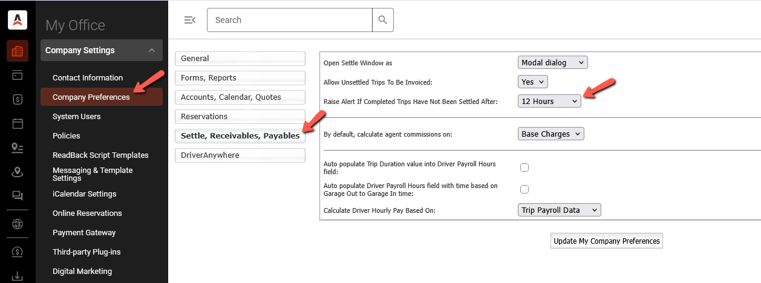
Unsettled-trip reminders
In My Office → Company Settings → Company Preferences → Settle, Receivables, Payables, review Raise Alert If Completed Trips Have Not Been Settled After.
New pending reservations
In My Office → Company Settings → Company Preferences → General, review Raise alert for new Online & eFarm-in reservations. The example shows this set to Yes.
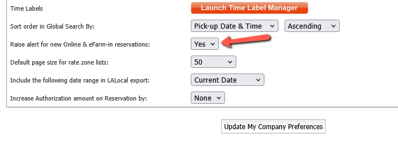
Use Update My Company Preferences to save changes. Also confirm that the applicable LANET farm-out accepted and rejected alerts are enabled. Ask Limo Anywhere Support for help locating or reviewing those settings.
Available now
Open LA 2.0 and check your notifications
Sign in at app.mylimobiz.com and open the bell in the upper-right header. Review the items relevant to your work and use the available View links to open the appropriate workflows.
Real-time updates. Existing alert settings carried forward. No additional cost for System Notifications.
Need help reviewing your alert settings? Email Limo Anywhere Support.
Recent Posts

Holiday Taxis Integration
Wednesday October 21, 2026
From Dispatch to Drop-Off: See Limo Anywhere in Action
Wednesday October 21, 2026