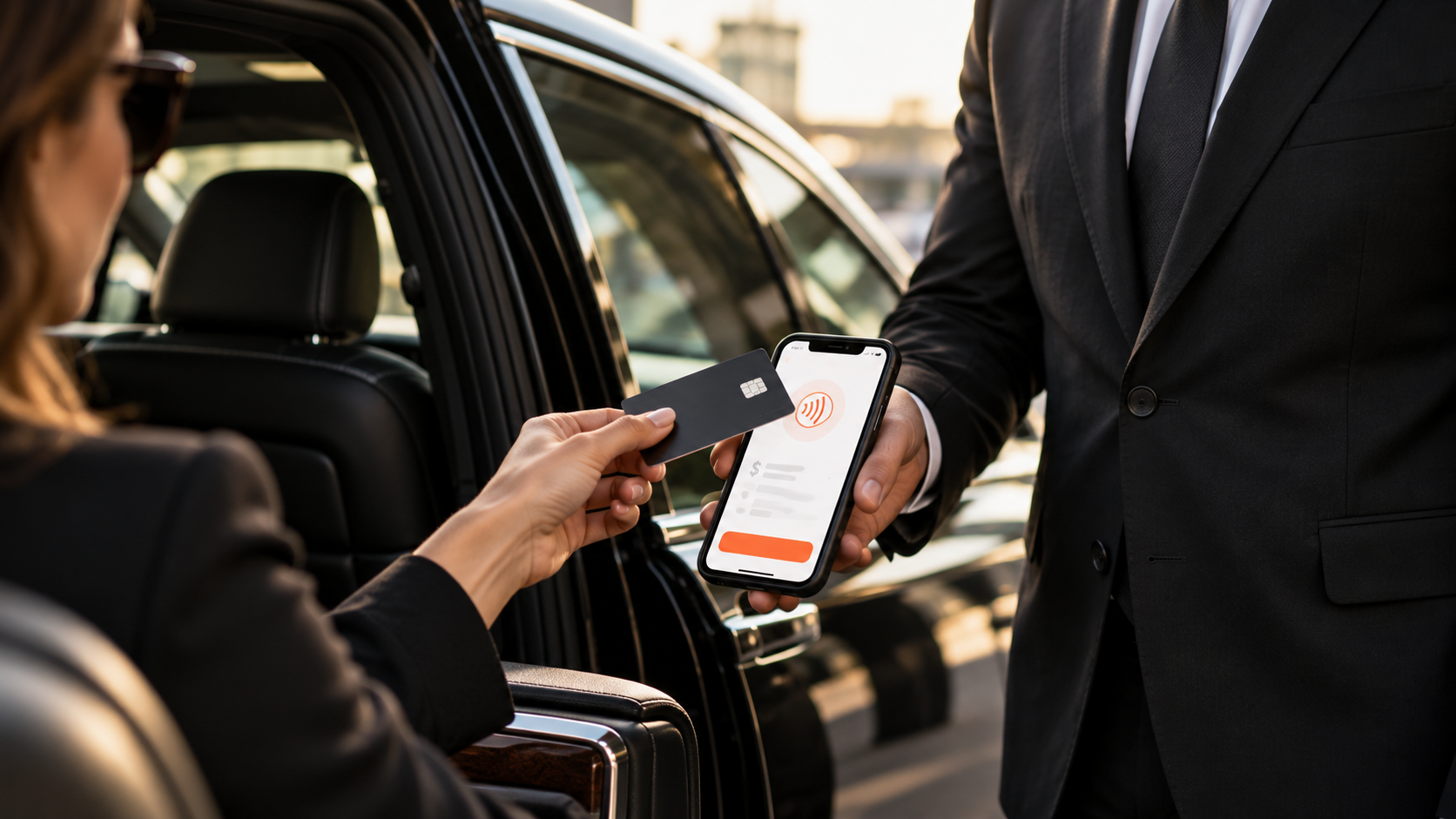
A simpler, secure way to pay in the car.
Give passengers a convenient contactless payment option with Tap to Pay on iPhone. Chauffeurs at eligible LA Pay operators can accept supported cards and digital wallets directly in Driver Anywhere for iOS—without a separate card reader.
Already a Limo Anywhere customer? Jump to setup →
Requires the LA Pay payment gateway. The feature is off by default; operators enable it under Company Preferences → Driver Anywhere. Compatible devices and driver payment permissions are also required.
From ride to payment
The passenger is at the destination. The chauffeur has provided a great ride. But what happens when a payment still needs to be collected?
When your current process involves finding a separate reader, contacting the office or following up later, the payment can become another task to manage. Tap to Pay on iPhone adds a secure contactless option directly to Driver Anywhere for iOS. Use it when the authorized payer is present and a payment is due.
Whether you already use Limo Anywhere or you're evaluating software for your fleet, the value is straightforward: make the final payment interaction easier to deliver, easier to manage, and more consistent with a premium transportation experience.
A small payment problem can create a much bigger operational headache.
A small friction point at drop-off can create extra work for a chauffeur, a dispatcher, an accountant—and the customer who simply wants to finish paying.
01 / Follow-up
Payment still outstanding
An otherwise completed trip turns into a reminder, call or payment-link request. Collecting an authorized balance while the payer is present may avoid some of that work.
02 / Hardware
One more device to manage
Separate card readers mean additional equipment to purchase, charge, pair, replace or distribute. A compatible iPhone can accept contactless payments without a separate reader.
03 / Experience
An awkward final moment
A premium ride deserves a clear payment experience. Passengers can use a supported contactless card or mobile wallet at the end of the service.
04 / Control
Inconsistent procedures
One chauffeur collects payment and another calls the office. Tap to Pay on iPhone is off by default; the operator enables it centrally and controls individual driver payment permissions.
Passengers, chauffeurs, office teams and owners all benefit differently.
Passengers and direct payers
Convenience and confidence
Pay with a supported contactless card, phone or watch without needing a separate reader. The amount appears on-screen for review before payment.
Chauffeurs
Less payment friction in the field
Use an approved workflow inside Driver Anywhere instead of juggling a separate payment accessory. The payment review screen also shows optional gratuity choices and the resulting total, giving you a clear point to review the payer’s selection before charging.
Reservations, dispatch and accounting
Fewer avoidable follow-ups
When appropriate payments are completed in person, the office may spend less time requesting or chasing those balances. Compare follow-up time before and after your rollout to see whether the change is meaningful for your team.
Owners and fleet managers
Operational flexibility
An owner-operator can streamline a simple transaction. A larger fleet can define which drivers have payment permissions and when the in-person payment option should be used.
Where does contactless payment make sense for a limo operator?
These are practical, illustrative situations—not claims about specific customer results. The common thread is that an authorized payer is present and an amount is legitimately due.
Airport & point-to-point
Self-paying passenger at drop-off
A traveler booked an airport transfer and will pay personally on arrival. The driver checks the balance, presents the approved amount and offers contactless payment.
Business value: An opportunity to finish an approved payment while the traveler is present rather than sending a separate request.
Hourly / as-directed
Final amount agreed after service
An hourly customer adds time or approved stops. Once the office and payer have confirmed the final charge, the chauffeur can offer Tap to Pay on iPhone for an outstanding balance.
Safeguard: Confirm any additional charges with your office and the payer before collecting the final amount.
Weddings and special events
Designated organizer paying onsite
A wedding coordinator or host has agreed to make an event payment at a scheduled handoff. When that designated payer is present and the amount is confirmed, the chauffeur can offer the contactless option.
Safeguard: Confirm the contract and named payer. Do not attempt to collect from individual guests on a host-billed event.
Corporate travelers
Direct-pay executive rather than account billed
A business traveler is personally responsible for a reservation rather than billing it to a corporate master account. Tap to Pay on iPhone provides a straightforward way to collect an approved in-person balance.
Safeguard: Do not substitute this for a company's existing invoiced payment arrangements.
Best fit by operator size
From the owner-driver to the growing fleet
For a one-car operation, the main value may be simplicity and less equipment. For a multi-driver operation, it may be a repeatable, secure contactless payment process that helps the office avoid select follow-ups.
Keep your existing billing arrangements
- The ride was already paid or auto-charged.
- The trip belongs on a corporate, event, or affiliate invoice.
- The payer is not present or has not authorized the amount.
- The operator does not use LA Pay, Tap to Pay has not been enabled, or required device/account conditions aren't met.
Where can Tap to Pay on iPhone return value to the business?
Start with measurable operational savings—not a promise of more rides or instant deposits. The effect depends on how often your operation has eligible on-site balances and what you do today.
Know your current baseline first.
Before enabling it fleet-wide, ask your team:
- How many rides per month require an in-person payment?
- How many of those balances currently need a later follow-up?
- How many minutes does each follow-up take?
- What is your fully loaded labor cost?
- How many payments would actually move to Tap to Pay on iPhone?
These five numbers determine the measurable labor opportunity.
What could fewer payment follow-ups be worth?
This hypothetical example—not customer performance data—shows how to value administrative time. Where available, adjust the inputs to estimate your own operation.
Assumptions: 200 eligible in-person payments × 25% that would otherwise need follow-up × 60% of those follow-ups prevented × 6 minutes per follow-up ÷ 60 × $28/hour = $84/month ($1,008/year).
Try the model using your own numbers
This is not a revenue forecast. Staff time freed is not identical to payroll savings. This example excludes new processing fees, training costs and any card-reader savings. Use actual transaction and collection data to calculate net ROI. Gratuities are not counted as operator profit or savings in this model.
Net benefit = realized labor savings + genuinely avoided reader costs + documented reduction in write-offs − incremental processing and rollout costs.Track speed of collection separately as a working-capital metric. If your current workflow already charges cards automatically with no follow-up, this feature may have limited measurable labor ROI for those trips.
Use the same measurement period for all costs and benefits. Where incremental costs are greater than zero, ROI (%) = net benefit ÷ incremental costs × 100. Count staff capacity as cash savings only when it actually reduces spending; do not count the same benefit twice.
How a chauffeur accepts a payment.
Select the payment option, review the amount, present the iPhone and verify the final transaction result. The screenshots below show the Driver Anywhere steps before the contactless payment begins.
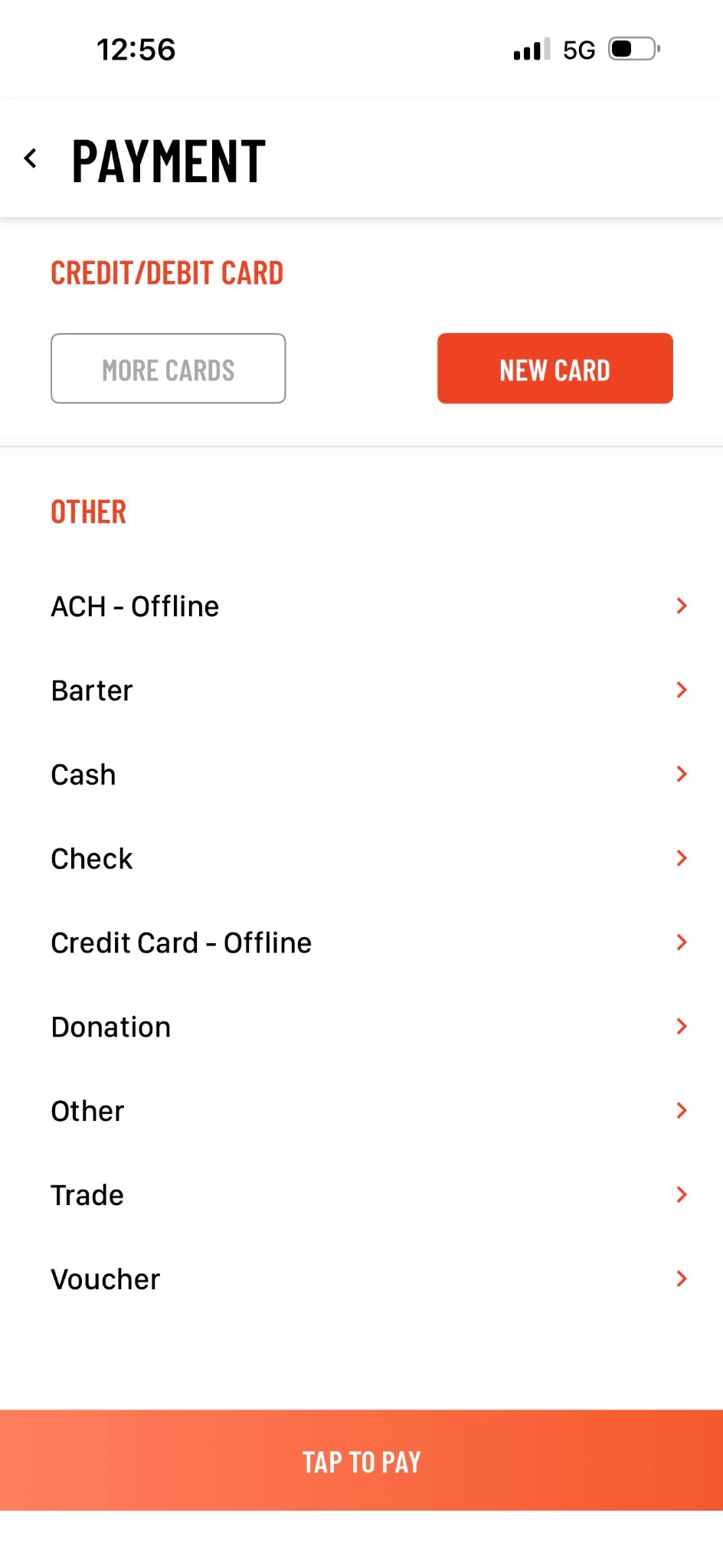
Choose the contactless payment option.
Begin the payment flow in Driver Anywhere and select the on-screen “TAP TO PAY” button for Tap to Pay on iPhone.
Confirm the complete amount.
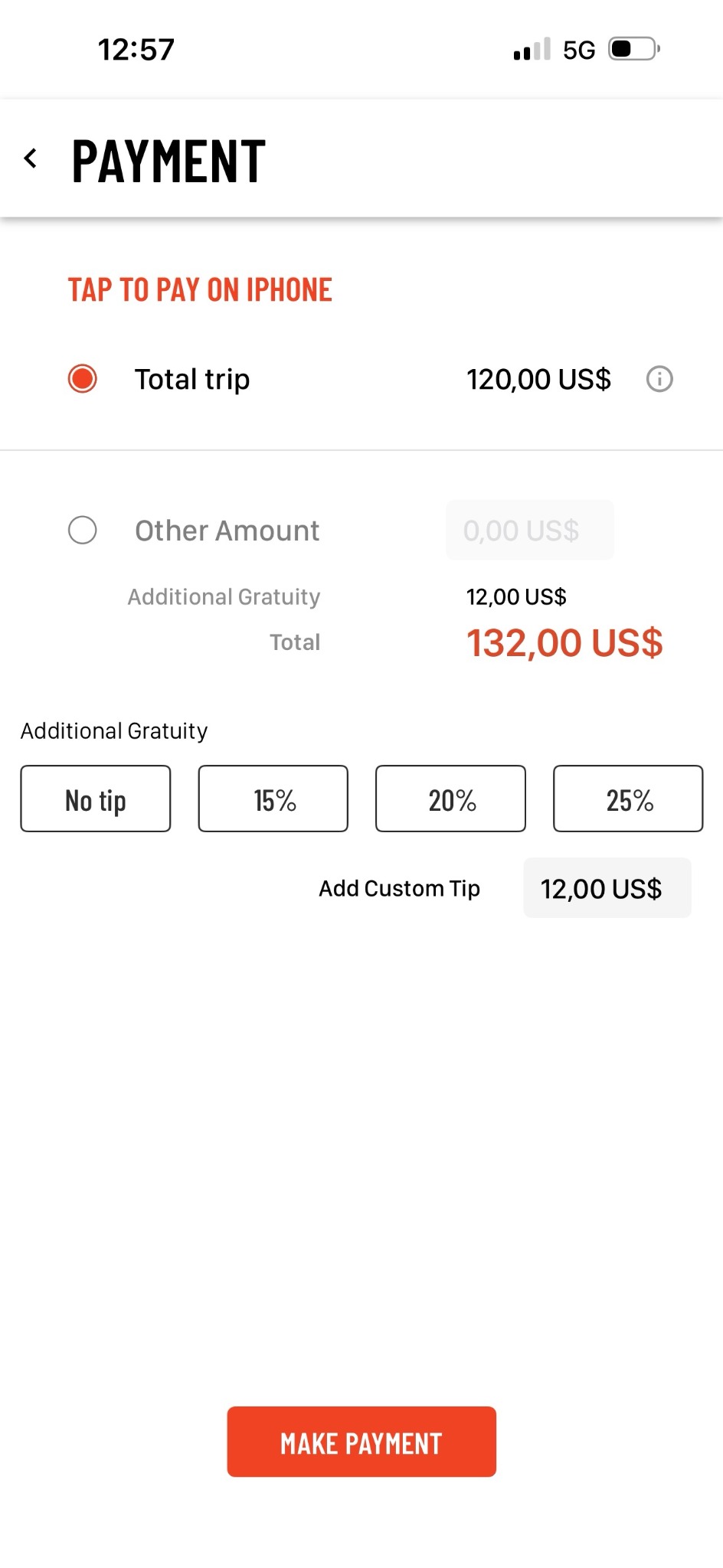
Review the trip amount and any customer-selected gratuity with the responsible payer before choosing “MAKE PAYMENT.” In this example, a $120 trip + $12 custom gratuity = $132 total.
Give the payer a clear choice before payment.
The example Driver Anywhere screen includes No tip, preset 15%, 20% and 25% choices, and Add Custom Tip. The resulting total is visible before payment begins.
The practical benefit: the passenger and chauffeur can review the payment amount and any optional gratuity together. Follow your operator’s enabled settings and tipping policy, keep the choice voluntary, and check whether a gratuity is already included in the trip price before adding another.
The screenshots illustrate one configuration. Use your account’s enabled settings and confirm how gratuities are recorded and paid out before rollout.
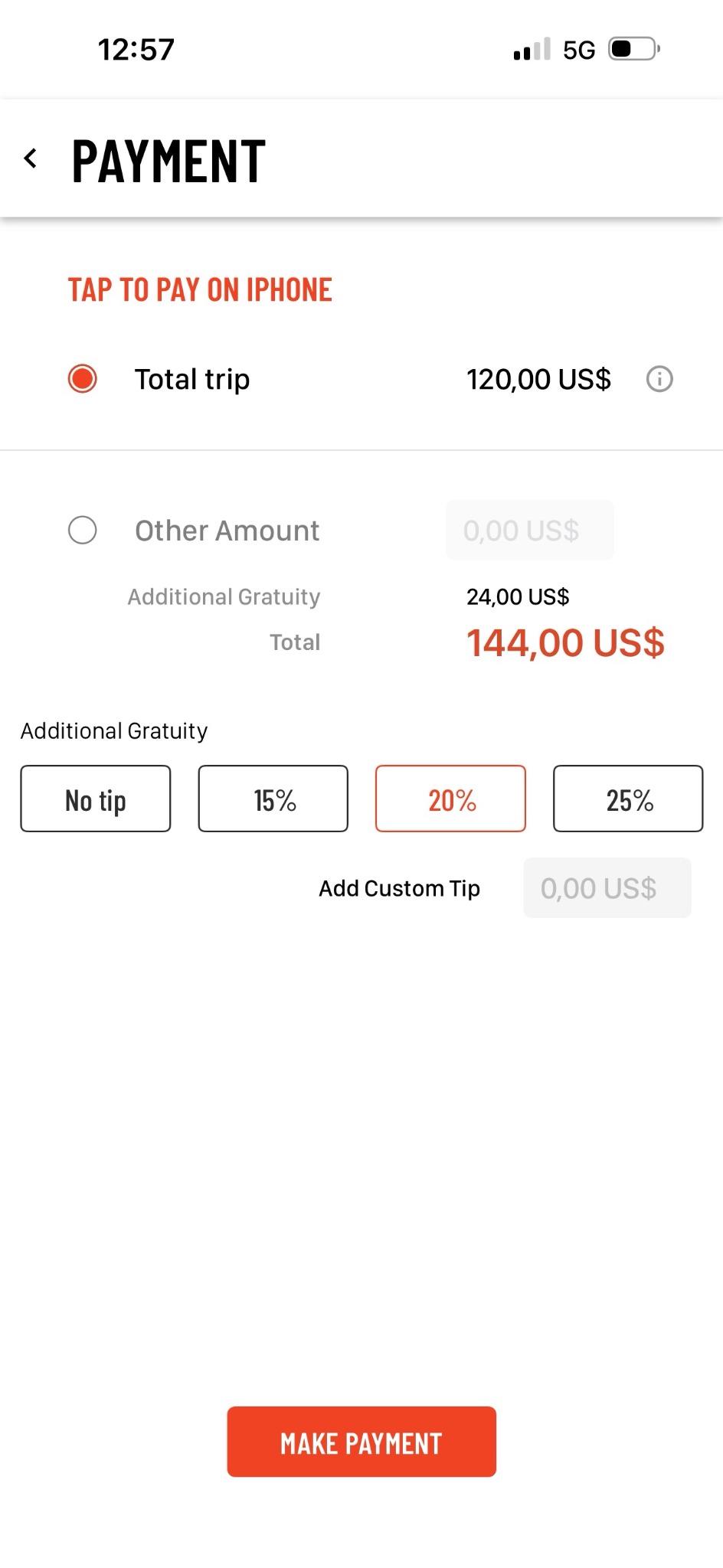
View a separate 20% gratuity example
This is an alternative example, not the next screen of the $132 transaction above: $120 trip + $24 gratuity = $144 total.
Present the iPhone.
When prompted, ask the payer to hold a supported contactless card, smartphone, or smartwatch near the indicated area of the chauffeur’s iPhone. Follow the live on-screen instructions and keep the payment method near the device until the app reports that it was read.
Check the transaction result.
After processing, confirm that Driver Anywhere displays a successful transaction result before closing the payment workflow. A successful card read is not the same as an approved payment. Tap to Pay on iPhone uses the same receipt as any other transaction.
How to get your operation ready.
Tap to Pay on iPhone is available only with the LA Pay payment gateway and is turned off by default. The operator must enable the feature and authorize the drivers who will use it.
- Use LA Pay. Confirm that your Limo Anywhere account is configured for the LA Pay gateway; other gateways do not support this feature.
- Switch on the feature. An operator goes to Company Preferences > Driver Anywhere and checks Allow Tap to Pay. It is disabled by default.
- Give drivers payment permission. Enable permission to process payments on each authorized chauffeur’s profile.
- Update Driver Anywhere for iOS. Eligible drivers install the latest available app and follow the in-app introduction. Confirm compatible iPhone, iOS and regional requirements with Support.
Make driver onboarding straightforward.
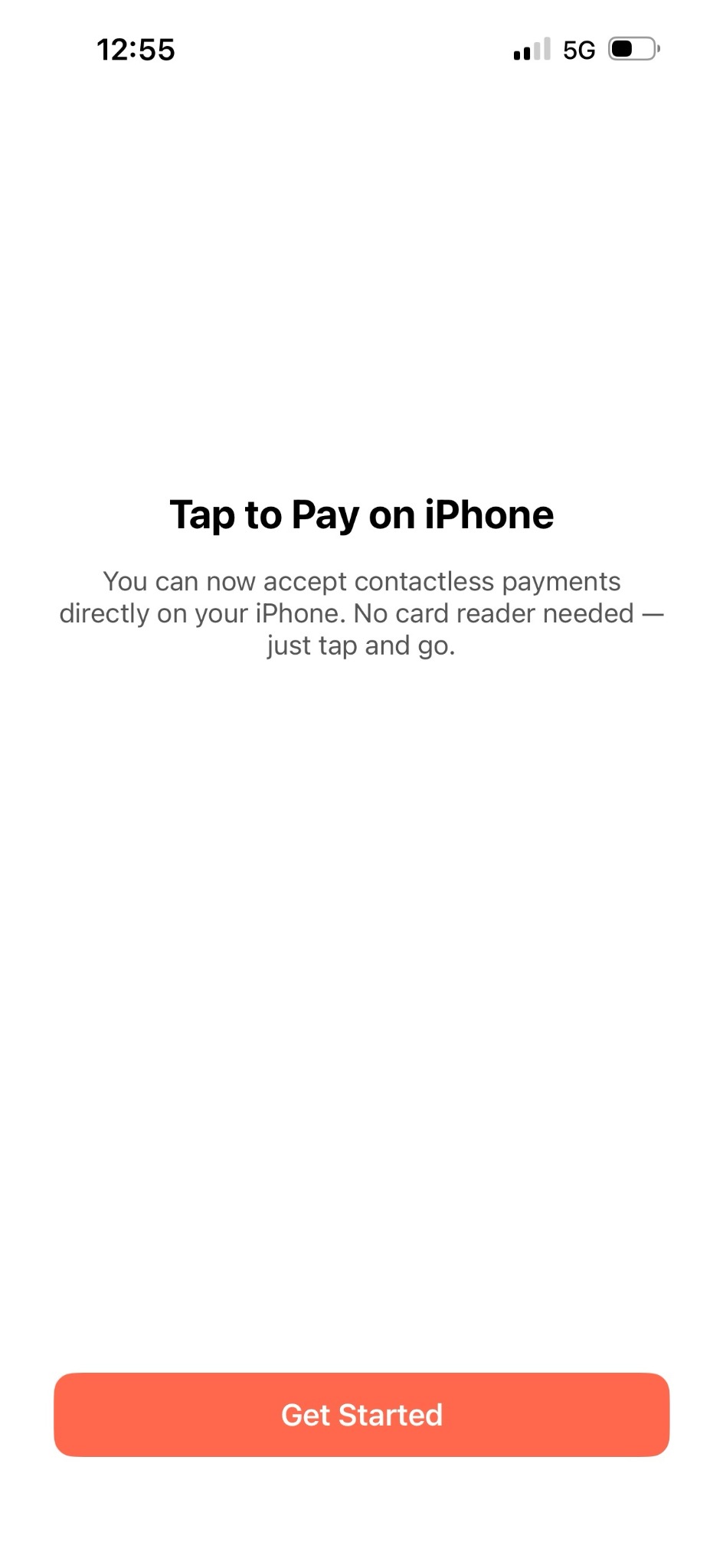
Eligible drivers see an introduction after updating. Select Get Started and follow any required in-app setup. The app also provides a Tap to Pay Info menu item for reviewing the feature’s guidance. Confirm that setup is complete before accepting a payment.
Recommended seven-step operator rollout
- Check readiness: confirm LA Pay is active, the driver devices are supported and your team understands the applicable account and processing terms.
- Select a pilot: start with two or three eligible drivers and the approved in-person scenarios that occur in your business.
- Configure permissions: switch on the default-off company setting, authorize each driver and install the latest Driver Anywhere for iOS.
- Train the interaction: confirm the payer and amount due, review any voluntary gratuity, show the final total, invite the contactless payment and verify the final transaction result.
- Test a controlled pilot: use a permitted test or authorized live transaction to verify the standard transaction receipt, merchant descriptor, decline response and back-office recording.
- Keep a fallback: follow your existing process if a card is declined, the customer lacks a supported method or connectivity is unavailable.
- Measure adoption: track eligible payments, successful completions, follow-ups avoided, time spent and customer/driver feedback before expanding.
Driver courtesy: “Your total is [amount]. You can pay with a supported contactless card or mobile wallet. Please review the amount, then hold your card or device near my iPhone when prompted.” Initiate payment only while safely parked.
Keep the steps with your team: Download the operator and chauffeur rollout checklist (PDF).
Think beyond the payment: consider the entire ride workflow.
The value is not just accepting a contactless card. It is giving your chauffeur an in-person payment option inside Driver Anywhere while your team manages the ride in Limo Anywhere.
Limo Anywhere brings together reservation management, dispatch, chauffeur tools and payment workflows. With LA Pay, Tap to Pay on iPhone adds a contactless option where the passenger and chauffeur meet.
If reservations, dispatch and field payments currently live in separate tools, use a Limo Anywhere discovery call to map how your team handles those handoffs and see which improvements are relevant to your business.
Questions to bring to your demo
- Can my chauffeurs collect eligible in-person payments using a supported iPhone?
- How are driver payment permissions managed?
- How are prepaid, corporate, affiliate and direct-pay trips handled differently?
- How do successful LA Pay transactions, standard receipts and exceptions appear in our workflow?
- Which LA Pay, location, device and plan requirements apply to our operation?
Frequently asked questions.
Which Limo Anywhere customers can use it?
Tap to Pay on iPhone is available only with the LA Pay payment gateway. Operators must enable the feature, give drivers payment-processing permission and use the latest Driver Anywhere for iOS on compatible iPhones. Contact Limo Anywhere Support to check your account and device readiness.
Is it automatically enabled?
No. It is off by default. The operator must enable Allow Tap to Pay under Company Preferences → Driver Anywhere. Individual drivers also need permission to process payments.
Do customers receive a different receipt?
No. Tap to Pay on iPhone uses the same receipt as any other transaction.
Does the passenger need an iPhone?
No. The chauffeur needs a compatible iPhone. The passenger can use a supported contactless credit or debit card, or a compatible smartphone or smartwatch payment method.
Is a separate card reader needed?
No separate card reader is needed for eligible contactless transactions. The chauffeur uses a compatible iPhone with Driver Anywhere for iOS, with LA Pay and the required permissions enabled.
Which iPhone and iOS versions are supported?
Apple’s general requirements specify iPhone XS or later and recommend the latest iOS. Confirm the specific iPhone, iOS and Driver Anywhere requirements for your LA Pay setup with Limo Anywhere Support before assigning devices.
Can the payer include a gratuity?
The example Driver Anywhere screens show No tip, 15%, 20% and 25% options, plus Add Custom Tip. Review the payer’s voluntary choice and final total before payment. Check whether gratuity is already included and follow your account’s enabled settings and gratuity policy.
What about prepaid, corporate or affiliate-billed trips?
Keep the established billing arrangement. Do not collect a second payment on a prepaid trip or bypass a corporate, event or affiliate invoice. Use the in-person option only when the present payer is responsible for an approved amount due.
Is Tap to Pay on iPhone secure?
Yes. Apple describes protections that include encryption and the iPhone Secure Element for contactless payment data. Continue following your normal authorization and payment-handling procedures. Read Apple’s explanation of the technology.
What happens without cellular or Wi-Fi service?
Do not assume offline acceptance is available in Driver Anywhere. Confirm connectivity requirements with Limo Anywhere Support and keep an approved fallback payment process.
What if a card is not read or payment is declined?
Check the final transaction status and follow your approved fallback process. Do not treat a card-read animation as a successful charge. If the status is unclear, verify the transaction with your office or Support before attempting another payment.
Are fees or funding times different?
Review your LA Pay agreement or contact Limo Anywhere for the fees, funding schedule and transaction limits that apply to your account. Do not assume that contactless acceptance changes those terms.
Make the last step as polished as the first.
Explore whether contactless payment acceptance through Driver Anywhere is a good fit for your operation.
Already using Limo Anywhere?
Using LA Pay? Enable the feature in Company Preferences, confirm driver permissions and follow the setup guide above. Not using LA Pay? Ask our team about the payment gateway and your options.
Considering Limo Anywhere?
Talk to us about booking, dispatch, driver workflows and payments together.
Tap to Pay on iPhone in Driver Anywhere requires LA Pay, operator activation, driver payment permission and compatible software and hardware. Contact Limo Anywhere for account-specific availability and processing terms. Learn more about the underlying Apple technology.